Using the Tasks App
 Use the Tasks app to create, display and edit user tasks. Avid Content Core distinguishes between the following task types:
-
Regular: A regular task is the simplest form of a task, it has no stages and transitions, and does not interact with specialized apps. A Regular task can have one or more assets attached or no attachment at all.
-
Review and Approval: Is a special task type, which has predefined task stages and allowed transitions. It interacts with the Review and Approval app for running the review and approval workflow of an asset. A Review and Approval task has one asset attached.
Additionally, tasks are distinguished between Private and Team:
-
Private: A private task is a regular task with Access type Private and is only visible to the user. Only regular tasks can be private tasks.
-
Team: A team task is a task with Access type Team and is editable for users with the required permissions. Both Regular and Review and Approval tasks can be Team tasks. Usually, a user gets assigned to a Team task from another user, based on an event, or a running process.
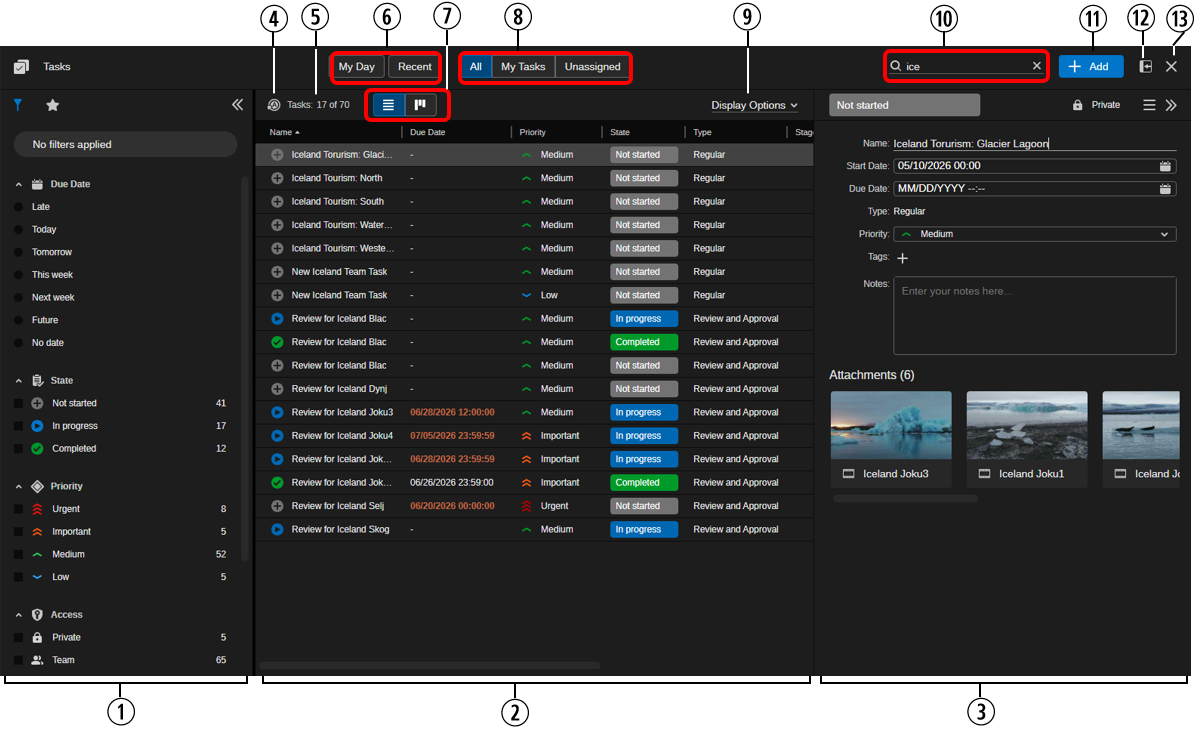
The following illustration and table provide an overview of the app.
|
|
Display or Control |
Description |
|
1 |
Sidebar |
The controls of the sidebar let you apply filters on tasks and use task favorites. In the sidebar header, the following buttons are shown (from left to right):
|
|
2 |
Tasks area |
Displays tasks, depending on the selected layout (List or Board view) and filter applied to the app. In the default List view layout, the Tasks area shows the following columns by default:
In List view layout, you can configure which columns are displayed by using the Display Options menu. See Modifying Tasks List Columns (List View). When you scroll down the Tasks area additional tasks are loaded. |
|
3 |
Task Details |
This panel opens to the right side of the Tasks app in the following cases:
|
|
4 |
Refresh button |
Lets you enable and disable an auto-refresh of the tasks shown in the Tasks area. If enabled, the auto-refresh option updates the tasks area every 30 seconds. See Refreshing the Tasks List. |
|
5 |
Tasks counter |
Displays information about the number of tasks in the form “<n> of <m>” (for example: 66 of 102). <n> is the number of tasks displayed in the Tasks area with applied filter, <m> is the number of all tasks that you can access when no filter is applied. |
|
6 |
My Day / Recent filter buttons |
Filters private and regular task types by a time-based filter. One of the following can be applied at a time:
Applying either of these filters disables any Due Date filter selected in the sidebar. See Applying Toolbar Filters. |
|
7 |
List View/Board View button |
Lets you toggle between List view and Board view layout. List view layout is enabled by default. For information on Board view, see Using the Board View. |
|
8 |
All / My Tasks / Unassigned filter buttons |
Filters private and regular task types. One of the following can be applied at a time:
|
|
9 |
Display Options |
Lets you define which columns are displayed in the Tasks area in List view layout. See Modifying Tasks List Columns (List View). |
|
10 |
Search name filter control |
Use the Search name filter control to display only tasks that include the provided search term in the task name. |
|
11 |
Add button |
Lets you create regular tasks. See Creating Regular Tasks. |
|
12 |
Docking button |
Docks the Tasks app at the left side of the Avid Content Core window. For more information, see Docking Apps. |
|
13 |
Close button |
Closes the Tasks app. |
To open the Tasks app:
-
Click the Tasks button on the Fast Bar.
To toggle between List and Board view:
-
 To switch to List view, click the List view button on the toolbar so it turns blue.
List view is enabled by default.
-
 To switch to Board view, click the Board view button on the toolbar so it turns blue.
To close the Tasks app:
-
Click the X in the app’s upper right corner.