Refreshing the Tasks List
-
 If Auto-Refresh is enabled, your
 -
 If Auto-Refresh is disabled, your
 Click the Refresh button to manually initiate a refresh of the tasks area.
Auto-Refresh is enabled by default every time you sign in to Avid Content Core.
To disable auto-refresh:
-
Place your cursor over the Auto Refresh button.
The Disable auto refresh menu appears to the right of the button.

-
Click the Disable Auto Refresh menu to disable the feature.
The menu turns gray to provide you with a visual confirmation of the change and the look of the Refresh icon changes.

When you move your cursor away from the menu, the menu disappears, but the Refresh icon maintains the updated look. Refresh stays disabled until you manually enable auto-refresh.
To enable auto-refresh:
-
Place your cursor over the Refresh button.
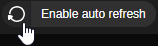
The Auto Refresh menu appear to the right of the button.
-
Click the Enable auto refresh menu to enable the feature.
The menu turns blue to provide you with a visual confirmation of the change and the look of the Refresh icon changes.

When you move your cursor away from the menu, the menu disappears, but the Auto Refresh icon maintains the updated look. Auto-Refresh stays enabled until you manually disable Auto-Refresh.