Docking Apps
The area directly to the right of the Fast Bar represents the dockable app space. When you dock an app, the app is reduced in size and placed to the left side of the user interface. You can then load another app to the right of this space (the Main area) to enable access to both apps simultaneously.
Note the following basic docking principles:
-
You can dock only one app at a time. If you dock one app and then you dock another app, the second app replaces the first.
-
If you have one app open and you dock it, you see the empty Main area to the right of the docked app.
-
If you have one app docked, any new full screen app is opened to the right of the docked app.
-
If you undock an app, the app fills both the dock and main areas of the user interface. The system automatically closes any app that might have previously occupied the Main area.
-
You can increase the width of a docked app by dragging the bar that separates the docked app from the main app to the left or right. If you have an app opened in the Main area, the size of this app is also changed.
-
Some apps, such as the Web Editor, do not support docking.
To dock an app, do one of the following:
-
 (if available) Click the app’s Dock button.
Not all apps include the Dock and Undock buttons.
-
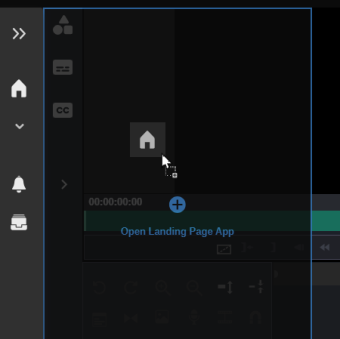
Click, drag, and drop an app from the Fast Bar to the left side of the user interface.
The left side of the UI is highlighted to help identify the drop area (shown dimmed and marked with a blue frame). The following example illustration shows the Landing Page app being dropped into the dockable space. This action will cause the Web Editor (currently opened in full screen mode) to be pushed to the right.
To undock an app:
-
 If the app includes an Undock button, click it to have the app fill both the docked space and the main app areas.
 -
If the app does not have an Undock button, drag and drop the app to the main area of the UI.