Applying Sidebar Filters
The
To apply filters to the
The sidebar filters are arranged in the following categories.
|
Category |
Description |
|---|---|
|
Due Date |
Lets you filter tasks by using
Note that a Due Date filter is automatically removed when you apply the My Day or Recent filter from the Tasks list toolbar. |
|
State |
Lets you apply a status-based filter. Multi-selection is supported.
Note that the filters Not started and In progress are automatically set when you apply the My Day filter from the Tasks list toolbar. If you disable one of the filters or additionally enable the Completed filter, the My Day filter is automatically disabled. |
|
Priority |
Lets you filter tasks by their priority. The following filters are available:
Multi-selection is supported. |
|
Access |
Lets you apply an accessibility-related filter. The following filters are available:
Multi-selection is supported. |
|
Type |
Lets you apply a type-based filter. The following filters are available:
Multi-selection is supported. |
|
Tags |
Lets you filter by tags that have been added to tasks. Multi-selection is supported. Unlike the other filters, which cannot be customized, tags might change since they can be added, renamed or removed in the details of a task. See Using Tags. Tags are sorted by usage numbers, highest numbers on top. If more than five tags are available, you can click the "show all" link to open a break-out window that displays all possible filters for the Tags filter category. |
Across categories, the filters are cumulative. For example, if you apply a
When you apply a filter, the Filter button in the sidebar header and the Applied Filters button are both updated to reflect the number of categories with applied filters. Within each category (except
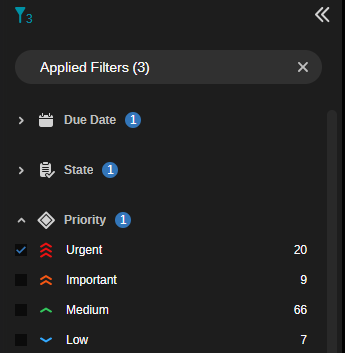
The sidebar can display up to eight entries for each filter category by default. In some cases, the app might display a “show all” button that allows you to select from additional filter options:
To apply a filter:
-
Click the Expand / Collapse toggle button of any collapsed filter group.
A set of predefined, non-modifiable filters is shown. No filter is selected by default.
-
Select the filters you want to apply.
-
Within the
-
For
The
-
To remove filters, do one of the following:
-
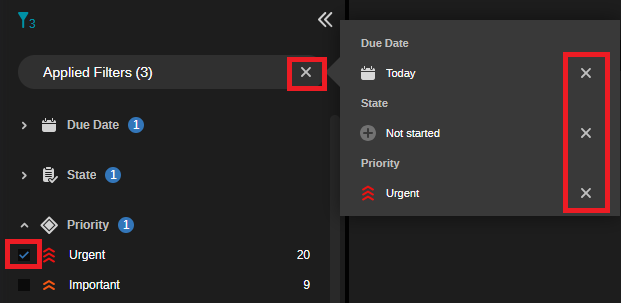
To remove all applied filters at the same time, click the X on the right of the Applied Filters button.
The Filter list is reset and all filters are cleared from the
-
To remove an individual filter, do one of the following:
-
Click on the Applied Filters button, and in the fly-out window that provides more detail on the selected filters click the X to the right of any filter you want to remove.
-
Deselect the check box of the applied filter you want to remove.
The filter is cleared from the
-