Using the Board View
 Board view displays tasks as a series of tiles that are arranged in columns. If you use this display mode, navigation controls might appear at the bottom of the Tasks app and to the right of each column.
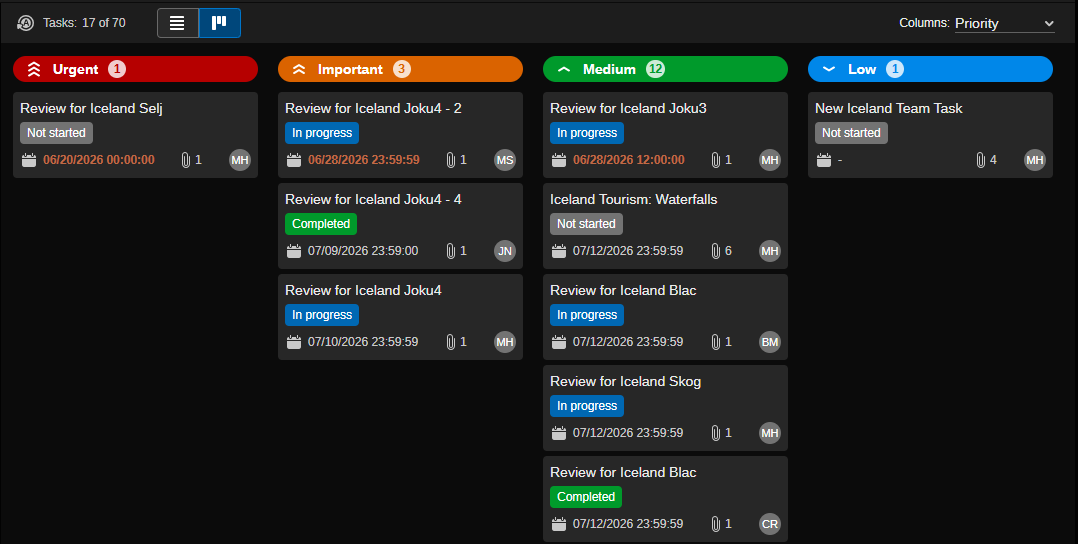
Columns
In Board view, three column layouts are available that can be selected from the Columns menu:
-
Due Date: Shows the columns Late, Today, Tomorrow, This week, Next week, Future.
-
Priority: Shows the columns Urgent, Important, Medium, Low.
-
State: Shows the columns Not started, In progress, Completed.
These column layouts cannot be modified.
Each column header shows the number of tasks matching this criterion. Within each column, up to 100 tasks can be shown. Tasks are sorted by Due Date within the columns; sorting cannot be modified.
Task Cards
Each task card shows selected task metadata. Depending on the selected column layout, different data is shown.
-
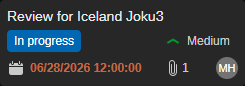
In Due Date column layout, each task card shows the following: Name, State, Priority, Due Date, number of attachments, Assignee initials.
-
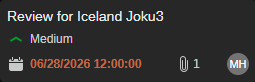
In State column layout, each task card shows the following: Name, Priority, Due Date, number of attachments, Assignee initials.
-
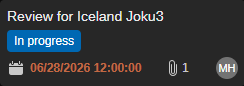
In Priority column layout, each task card shows the following: Name, State, Due Date, number of attachments, Assignee initials.
Note that you cannot edit the data on a task card.
Basic Patterns
The basic interaction patterns are the same in List view and Board view. Exception: In Board view, multi-selection and inline-editing are not supported.
To select a task:
-
Click on a task to show its details in the Details panel.
For more information, see Understanding the Details Panel.
-
Double-click on a Review and Approval task to load it into the Review and Approval app.
For more information, see Using Review and Approval Tasks.
-
Right-click a task card to open the context menu. Depending on the task type, any of the following menu items can be shown:
-
Delete. For more information, see Deleting Tasks.
-
Copy Link. For more information, see Using Task Links.
-
Open in Review and Approval app. For more information, seeUsing Review and Approval Tasks.
-
Editing Using Drag and Drop
Board view provides editing features that can be applied by simple drag and drop actions:
-
Changing the due date of a task. For more information, see Changing the Due Date.
-
Changing the task priority. For more information, see Changing the Priority.
-
Changing the task state. For more information, see Changing the State.
Navigating in the Board View
If you use Board View mode, navigation bars might appear:
-
Depending on the number of shown columns and if the sidebar or Details panel or both are shown, a horizontal navigation bar can be shown at the bottom of Board view.
-
Depending on the number of tasks shown in a column, a vertical navigation bar can be shown to the right of a column when you hover the mouse pointer over the column.
To scroll in columns:
-
Hover the cursor over a task in a column.
-
Do one of the following:
-
Use the navigation bar that is shown to the right side of the column to scroll up and down within that column.
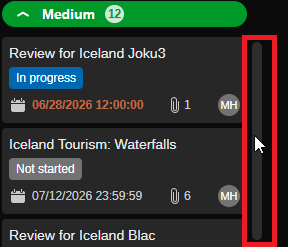
-
Move the mouse wheel up and down to scroll up and down within that column.
-
Interaction with Toolbar and Sidebar Filters
Basically, there is no difference how toolbar and sidebar filters are applied to the tasks in List view or Board view. But there are a few specific effects in Board view:
-
My Day toolbar filter and Due Date column layout: If you select the Due Date column layout in Board view and then apply the My Day filter from the toolbar, the Tomorrow, This week, Next week, Future, and No date columns are hidden; only the Late and Today columns are shown.
-
Due Date sidebar filter and Due Date column layout: If you select the Due Date column layout in Board view and then apply a Due Date filter from the sidebar, all columns except the one selected in the sidebar are hidden.
-
State sidebar filter and State column layout: If you select the State column layout in Board view and then apply one or more State filters from the sidebar, all columns except the selected in the sidebar are hidden.
-
Priority sidebar filter and Priority column layout: If you select the Priority column layout in Board view and then apply one or more Priority filters from the sidebar, all columns except the selected in the sidebar are hidden.
Applied filters persist when you toggle between List and Board view. For more information on filters, see Applying Toolbar Filters andApplying Sidebar Filters.
Changing the Due Date
In Board view, you can easily change the Due Date of a task by a simple drag and drop operation. The following table illustrates how the Due Date is changed when you move a task to another Due Date column.
|
Target Column |
Change applied to Due Date |
|---|---|
|
Late |
not allowed |
|
Today |
Due Date is set to today, original time is kept. |
|
Tomorrow |
Due Date is set to tomorrow, original time is kept. |
|
This week |
Due Date is set to the last day of the current calendar week, original time is kept. |
|
Next week |
Due Date is set to the last day of the next calendar week, original time is kept. |
|
Future |
Due Date is set to the last day of the calendar week after next calendar week, original time is kept. |
|
No date |
Due Date and time are cleared. If you later move the task to another Due Date column, the original time is not restored. Instead, 23:59:59 is set as time. |
When you drop a task to a column where Due Date is before the Start Date of the task, also the Start Date of the task will be modified as follows:
|
Target Column |
Change applied to Due Date and Start Date |
|---|---|
|
Late |
not allowed |
|
Today |
Due Date is set to today, original time is kept. Start Date is set to Today at 00:00:00. |
|
Tomorrow |
Due Date is set to tomorrow, original time is kept. Start Date is set to Tomorrow at 00:00:00. |
|
This week |
Due Date is set to the last day of the current calendar week, original time is kept. Start Date is set to the first day of the current calendar week at 00:00:00. |
|
Next week |
Due Date is set to the last day of the next calendar week, original time is kept. Start Date is set to the first day of the next calendar week at 00:00:00. |
|
Future |
Due Date is set to the last day of the week after next calendar week, original time is kept. Start Date is set to the first day of the calendar week after the next calendar week at 00:00:00. |
|
No date |
Due Date and time are cleared. Start Date is not changed. |
To change the due date of a task:
-
Switch to Board view.
-
Select Due Date from the Columns list.
Tasks are arranged in seven columns: Late, Today, Tomorrow, This week, Next week, Future, No date.

-
(optional) If not all tasks of a certain date are shown, hover the cursor over the column and use the navigation bar that is shown to the right side of the column to scroll down.
-
Click on a task and drag it to another date column.
The column is highlighted as a drop target.
-
Release the mouse button.
The Due Date of the task is updated to the Due Date of the target column.
Changing the Priority
In Board view, you can easily change the Priority of a task by a simple drag and drop operation.
To change the task priority:
-
Switch to Board view.
-
Select Priority from the Columns list.
Tasks are arranged in four columns Urgent, Important, Medium and Low.

-
(optional) If not all tasks of a certain priority are shown, hover the cursor over the column and use the navigation bar that is shown to the right side of the column to scroll down.
-
Click on a task and drag it to another priority column.
The column is highlighted as a drop target.
-
Release the mouse button.
The Priority of the task is updated to the priority of the target column. In the Filters sidebar, the counters in the Priority category are updated accordingly after the next auto refresh interval.
Changing the State
In Board view, you can easily change the State of a task by a simple drag and drop operation.
To change the task state:
-
Switch to Board view.
-
Select State from the Columns list.
Tasks are arranged in three columns: Not started, In progress and Completed.

-
(optional) If not all tasks of a certain state are shown, hover the cursor over the column and use the navigation bar that is shown to the right side of the column to scroll down.
-
Click on a task and drag it to another state column.
The column is highlighted as a drop target.
-
Release the mouse button.
The State of the task is updated to the state of the target column. In the Filters sidebar, the counters in the State category are updated accordingly after the next auto refresh interval.