Exploring the Fast Bar
The Fast Bar provides you access to the any of the apps that are licensed on your Avid Content Core system and that are available to you. App access is partially determined by user-specific roles, so it is possible that your list of apps could differ from another user within your organization.
The following table provides more information about the Fast Bar.
|
Button |
Title |
Description |
|
|
Expand / Collapse |
You can click the Expand button to show the Fast Bar in more detail, or click the Collapse button to minimize the Fast Bar to the left side of the user interface. |
|
|
Landing Page |
The Landing Page is designed to help you find the assets you need quickly and easily. It is the first app to be displayed when you first sign in to Avid Content Core. |
|
|
Search |
The Search app provides a powerful global search and filtering tool that enables you to locate assets using a either an AI enabled natural language search, or an advanced text-based metadata search. For more information, see Using Search and the Search App. |
|
|
Web Editor |
The Web Editor app provides a full screen source/record editing experience that allows you to build multi-layer sequences with advanced audio features and graphics creation with keyframing. After you have created your final sequence, you can use the tools available through this app to publish your sequence to one or more destinations, such as Instagram, Facebook, and more. For more information, see Using the Web Editor App. |
|
|
Tasks |
The Tasks app allows you to create, show, and edit tasks. These can be private tasks that you create to organize your daily work, or tasks that have been created by other users and assigned to you. For more information, see Using the Tasks App. |
|
|
Review and Approve |
The Review and Approve app allows you to share an asset with another Avid Content Core user so that they can view and comment on the asset. The app enables a collaborative workflow where users can exchange feedback until the asset reaches its final approval stage. For more information, see Using the Review and Approval App. |
|
|
Jobs |
Allows you to monitor Avid Content Core jobs. For more information, see Using the Jobs App. |
|
|
Notifications |
Alerts you to system events. For more information, see Viewing Notifications. |
|
|
My Collections |
Allows you to gather assets in a virtual clipboard for later use. For more information, see Using My Collections. |
|
|
App Overflow |
If you reduce the size of your browser window to a point at which all apps cannot be displayed, the Fast Bar responsively scales by hiding apps from bottom to top. When this happens, ACC displays the App Overflow button. You can access hidden apps by clicking the app overflow button. |


Customizing the Fast Bar
Avid Content Core displays the apps in the Fast Bar in a default order. However, you can customize the Fast Bar to reorganize the apps into a custom order, or even hide apps that are not part of your standard workflow. Your customizations are saved on a per-user basis within Avid Content Core.
The Landing Page, Notifications, and My Collection apps are excluded from this workflow.
To reorganize the Fast Bar apps:
-
Click the User Menu and select the Manage Fast Bar option.
The Fast Bar goes into edit mode and a set of new buttons appears near the top of the user interface. You might also notice that the apps in the Fast Bar "wiggle" as a visual indicator of this mode.
-
Drag and drop an app to a new position within the Fast Bar.
When you drag an app, a blue frame appears around the app. The following illustration shows a user dragging the Web Editor app above the Search app.
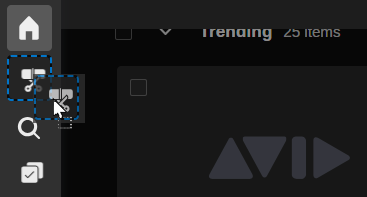
n You cannot reposition or move an app above the Landing Page app. This app is always first in the order and cannot be hidden.
-
Release the mouse button to drop the app into position.
-
When you have finished customizing the Fast Bar, do one of the following:
-
Click the Done button to confirm your changes.
-
Click the Cancel button to abort your changes.
-
Click the Reset to Default button to reset the Fast Bar to it's factory default state.
-
To hide or show the Fast Bar apps:
-
Click the User Menu and select the Manage Fast Bar option.
The Fast Bar goes into edit mode and a set of new buttons appears near the top of the user interface. You might also notice that the apps in the Fast Bar "wiggle" as a visual indicator of this mode.
-
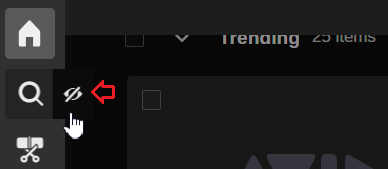
Hover your cursor over the app that you want to hide.
As illustrated below, a show/hide icon appears to the right of the app.
-
Click the show/hide button to hide or display the app.
When you hide an app, the app dims to 50% opacity to indicate that it is hidden. Additionally, the show/hide icon changes to an open eye. You can click the open eye to display the app in the Fast Bar.
The Landing Page app is excluded from this workflow. You cannot hide the Landing Page app.
-
When you have finished customizing the Fast Bar, do one of the following:
-
Click the Done button to confirm your changes.
-
Click the Cancel button to abort your changes.
-
Click the Reset to Default button to reset the Fast Bar to it's factory default state.
-