Using Search and the Search App
Whenever you initiate a search using the banner at the top of the Avid Content Core user interface, the system opens the Search app — where the results of your search are displayed. Alternatively, you can select the Search app in the Fast Bar to directly interact with this app.
The Avid Content Core search produces results based on a deep index of asset metadata. ACC constantly syncs with the source on-prem and cloud-native systems to ensure that this index is up to date. If this metadata is altered — for example an asset is renamed — the updates to that asset are reflected across all areas of Avid Content Core after a very short period of time.
Search App Overview
 The Search app enables you to quickly and easily locate assets across your entire Avid Content Core system using either a simple, but powerful semantic search, or a more granular advanced search that allows you to narrow your results through one or more filters.
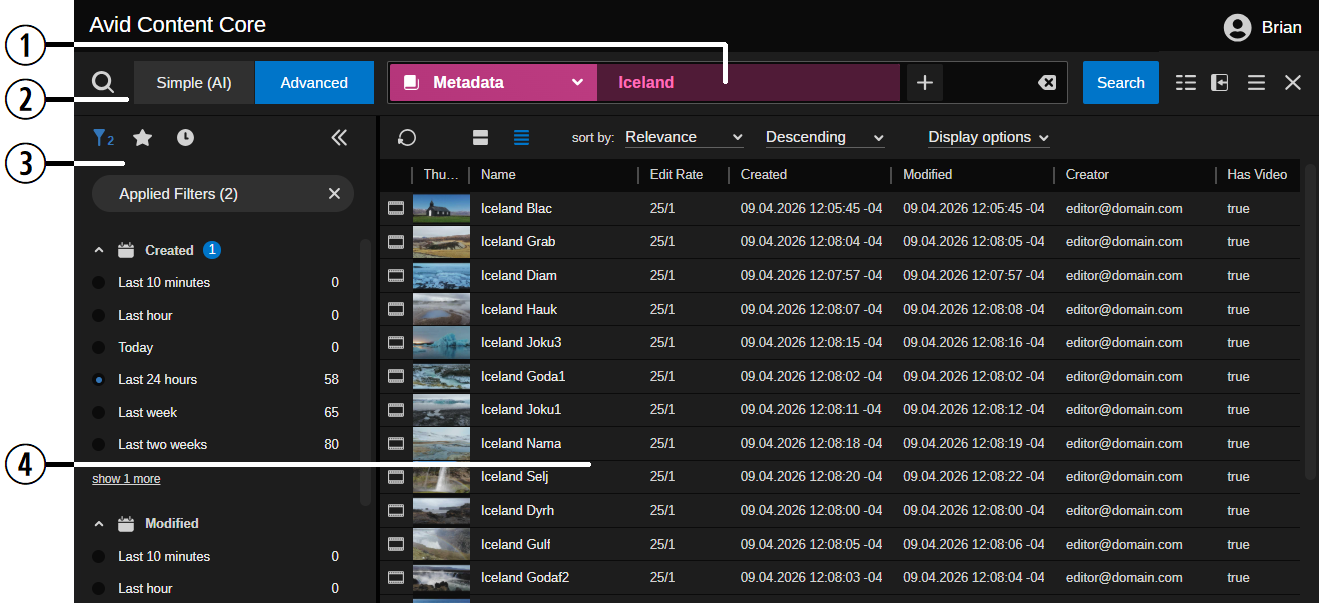
The following illustration and table provide an overview of the app.
|
# |
Section |
Description |
|
1 |
Search Header |
Allows you to define custom search parameters and execute searches. For more information, see Using the Simple Search or Search App Header (Advanced). |
|
2 |
Simple / Advanced Toggle |
Allows you to switch between the Simple and Advanced search options. For additional details, see: |
|
3 |
Search Sidebar |
The sidebar includes options to narrow your search through a series of predefined filters. Additionally, options to create and use search favorites and to review your search history are also included. For more information, see Working with the Search Sidebar. |
|
4 |
Results toolbar and Search Results area |
Lists all assets returned by a given search. For more information, see Using the Results Toolbar and Search Results. |
For more information on keyboard shortcuts that can be used with the Search app, see Keyboard Shortcuts.