Using the Review and Approval App
 The Review and Approval app enables content creators to have their work reviewed by other team members that are designated with this responsibility through role assignment. In the review process, the approver might decide that the work is ready for immediate publishing, or they might provide feedback to the content creator so that they can further enhance the asset.
This review process can be repeated, using the same asset (or different assets), as many times as necessary to ensure that the final result meets all of your organization's content guidelines.
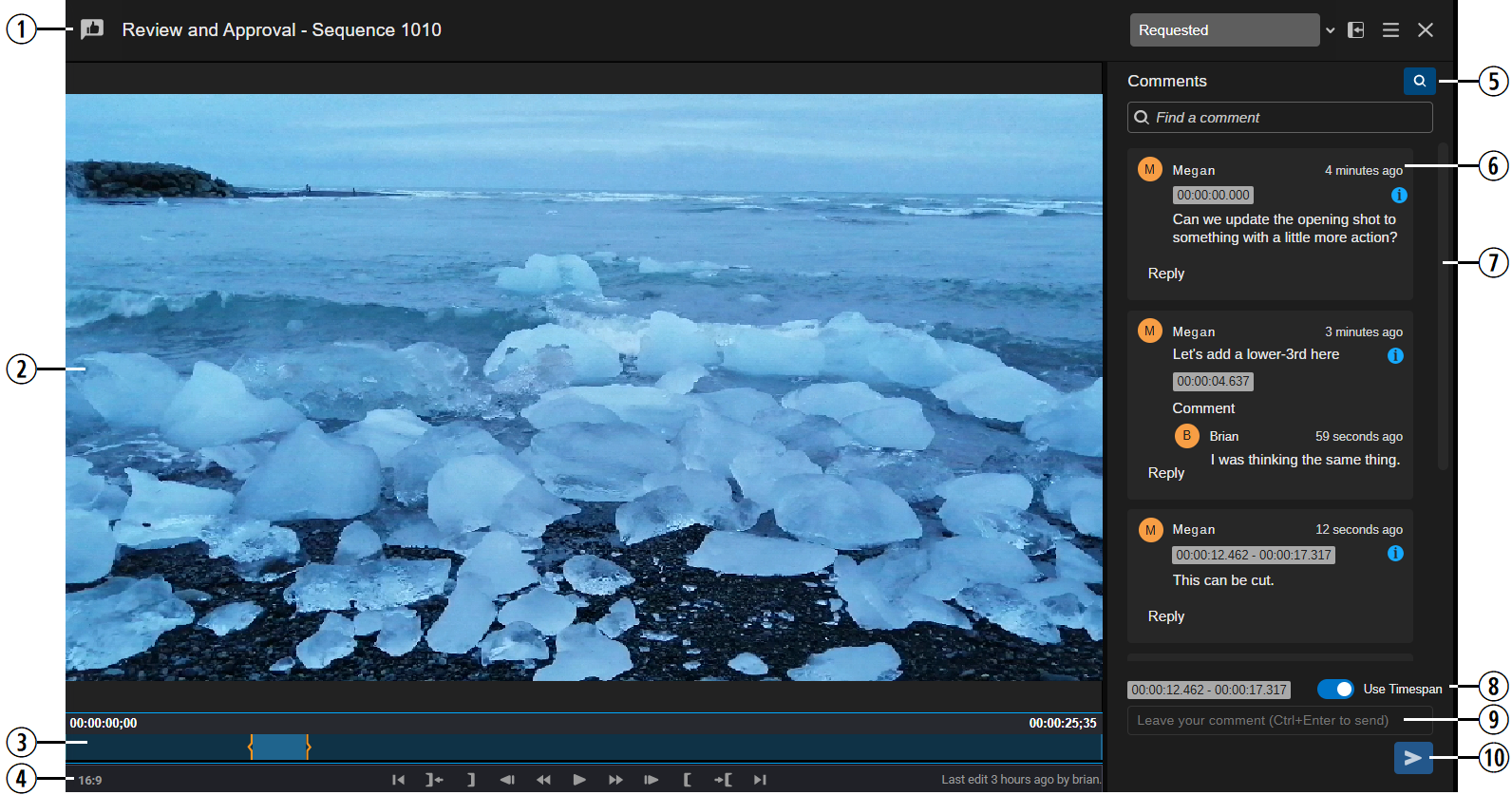
The following illustration and table explain the different areas of the Review and Approval app.
|
# |
Name |
Description |
|---|---|---|
|
1 |
App Header |
The header includes the following:
|
|
2 |
Media Viewer |
Displays the asset loaded into the app |
|
3 |
Position Indicator Panel |
Includes the following:
|
|
4 |
Playback and Edit Controls |
Plays the asset and allows you to add Mark In and Out points. Both the Position Indicator Panel and the playback controls work similarly to those in both the Player and the Web Editor app. This includes use of the JKL controls. For more information on that feature, see Using the J-K-L Keys for Playback. |
|
5 |
Find Comments |
Click the Show Search or Hide Search button to show or hide the Find a Comment field. As you enter text into this field, the list of comments is updated to display matches for your text. If you enter a value into this field and then click the Hide Comment button, the app ignores the value and displays all comments. If you click the Show Comment button again, your previous value is displayed. You can also use the Markers & Segments > Reviews option in the Search app to search for comments and the name of the person (author) who created the comment. |
|
6 |
Comment / Threads List |
A vertical list of comments that have been added to this asset through the review and approve process. Comments are sorted by timecode. Each comment includes the name of the user that created the comment. Timecode is displayed as HH:MM:SS.mmm. Given that the proxy media might be created at a different frame rate than the source asset, the final value is displayed in milliseconds to ensure that your comment applies to the most accurate frame of media. The time stamp to the right of the user name shows when the comment was added (relative to the current date and time). You can hover over the time stamp to display a tool-tip that shows the exact date and time when that comment was added. The Reply button allows those involved in the review and approve process to provide feedback on a specific comment. If multiple responses are added to the same comment, it becomes a thread. You can click on any comment to move the position indicator bar to that point on the timeline. If you dock the R&A app and open the Web Editor in the main area of the user interface, the change in position moves both the R&A monitor and the Web Editor's Source or Record monitors. n This workflow assumes that the same project, sequence, or asset is loaded in the Web Editor. |
|
7 |
Vertical Scroll Bar |
Allows you to scroll through the list of comments. |
|
8 |
Use Timespan Button |
If you add In and Out marks, this button allows you to add a comment to a span of time, instead of just a single frame of video. When enabled, the toggle button turns blue and the timecode value to the left displays the range. |
|
9 |
Comment Field |
Text field used to add comments. |
|
10 |
Send (comment) |
Allows you to add a comment. |
 When docking the R&A app, the layout goes vertical with the player at the top and the comments area below. While in vertical mode, a Maximize button appears that allows you to hide the player to provide the maximum amount of space for adding comments.
Review and Approve Workflow
Sequence Workflow
At a high level, the sequence review and approve workflow is as follows:
-
The editor creates a sequence through the Web Editor app.
-
The editor submits the sequence for approval.
-
A reviewer uses the Tasks app and the Review and Approval app to check the editor's work and either:
-
Approves the edit.
-
Rejects the edit.
In this case the task is automatically reassigned back to the person who created the task.
-
-
If rejected, the editor uses the comments to make the appropriate updates to the sequence and then resets the task to a Requested status.
-
The task is sent back to the reviewer, and this process is repeated as many times as necessary.
If you submit the same sequence for review in two separate tasks, the comments from the first review are not forwarded to the next task. If you need to review the original comments, you can search for the original task in the Tasks app.
Master Clip Workflow
If you are reviewing a Production Management master clip, the workflow is slightly different as you cannot edit a master clip (like you can a sequence). In this case the review process is meant to allow the reviewer to add comments to a clip, potentially highlighting certain segments that should either be used or potentially avoided.
Errors and Warnings
When you are reviewing a sequence, the Review and Approval app might display an icon next to the comments to provide you with important messages about the sequence and the related comments. As source assets are not subject to change, these informational icons apply to sequence reviews only.
The following status options are possible:
 Information: The sequence has been changed since this comment was made.
 Warning: The sequence has been changed since this comment was made, and it's been 24 hours or longer since that change occurred.
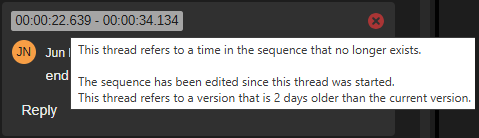
 Error: The sequence has been changed since this comment was made, and this comment no longer applies because it points to an area of the sequence that no longer exists. The R&A app looks at the timecode stamp, or at the end timecode of a span to determine if that point in timecode still exists. For example:
-
You have a 5 minute long sequence. A comment is added to 00:04:30:00. The editor deletes the last minute of the sequence. This action would flag that comment as an error because the sequence is now only 4 minutes long.
-
You have a 5 minute long sequence. A comment is added the sequence at 00:02:00:00. The editor deletes a one-minute long segment at 00:01:30:00 - 00:02:30:00. Although the comment no longer applies to the newly edited sequence (because the segment was deleted), the error is not triggered because the area of timecode still exists.
You can obtain more information about each status by hovering your cursor over the icon to display a tool-tip (as shows in the following illustration).
If you prefer eliminate the possibility of any invalid comments, you can create a new task to initiate a new review of the re-edited sequence.
Submitting an Asset for Review
When you need content approval, you must create a review task, and then assign that task to an approver. The approver receives a message in the Notifications app that alerts them to the new task. The approver can then access the asset through the R&A app where they can play the content and leave comments (as necessary).
The following process describes how to submit an asset for review.
To submit an asset for review:
-
Right-click on an asset in another area of the Avid Content Core user interface, such as the Web Editor or the Search app, and select Request a Review from the context menu.
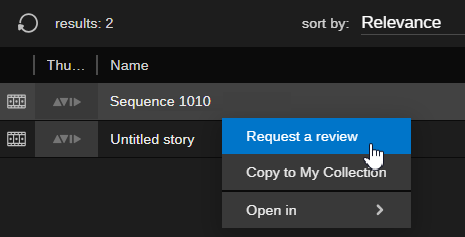
This action opens a Review and Approval task creation window.
-
Complete all required fields, and click Add to save the task.
Reviewing an Asset
You can use the R&A app to review Production Management master clips and Web Editor sequences.
n This release of Avid Content Core does not support sending Asset Management assets through the Review and Approve process.
The comments that you add to an asset in the Review and Approve app are separate from any comments that you might add to a Marker in a MediaCentral asset. R&A comments are associated with the Avid Content Core proxy media and they are stored directly in Avid Content Core. Review comments are not pushed back to any on-prem system such as the Production Management database.
If you delete an asset, the review comments for that asset are also deleted.
The following process describes how to review an asset. At the end of your review, you can either approve the asset, or send the asset back to the creator with comments.
To review an asset:
-
After you submit an asset for review, so any of the following to open a task and review the associated asset:
-
In the Tasks app, double-click the task in the Tasks list.
-
In the Tasks app, right-click the task in the Tasks list and select the Open in Review and Approval App option from the context menu.
-
From the My Day panel on the Landing Page, select the Open in Review and Approval App option from the context menu.
-
Click on a Review and Approval notification.
ACC opens the Review and Approval app in the main area of the user interface.
For more information on tasks and their usage, see Using Review and Approval Tasks.
-
-
Play or scrub through the asset to review it.
-
When you find an area of the asset for which you want to leave a comment, do one of the following:
-
Move the position indicator bar to a specific frame.
-
Use the Mark In and Mark Out buttons in the playback and edit controls to mark a span of time.
-
-
Enter text into the "Leave your comment" field. When entering text, note the following:
-
The comments field allows for standard text in whatever language is specified on your local workstation.
-
You can press the Enter or Return key to create a new paragraph.
-
Emojis are supported.
-
If you add a hyperlink to a comment, the link is not updated to a clickable hotlink.
-
You cannot attach images or other digital assets to the comment.
-
-
If you added mark In and Out points, click the Use Span check box to note the spanned region.
The timecode field to the left of this box updates to show the spanned area.
It is possible to use the Use Span option for a single frame. In this case the start and end timecodes of the span are the same.
-
Do one of the following to submit your comment:
-
Click the Send button.
-
Press Ctrl+Enter (Win) or Cmd+Enter (Mac).
-
-
Click the Stage menu above the comments area to update the status of the review with one of the following options:
-
Request (Requested)
-
Approve
-
Reject
-
Cancel
-
Reopen
If you do not have permissions to alter the stage, the app replaces the Stage menu with a static Stage icon. For example if your are assigned to an Approver role, you can apply any stage to a task; if you are assigned to a Journalist role, only the Request, Cancel and Reopen stages are available for selection. For more information on stages, see Using Review and Approval Tasks.
Alternatively, you can change the stage in the associated task in the Tasks app. Each time the task's stage is updated, ACC sends a notification to the user assigned to the task.
-