Viewing Notifications
Notifications alert you to system events that relate to your Avid Content Core user account. For example, users of the Review and Approval app receive a notification when the approval status of their Review and Approval task has changed (Requested, Rejected, or other); users that have been assigned to a regular team task in the Tasks app receive a notification when the task is created, in progress, or completed.
When an action generates a new notification, a message banner appears in the upper-right corner of the user interface that provides a synopsis of the notification, as shown in the following examples.
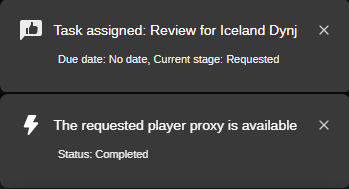
You can identify the action that generated the notification by its icon.
|
Icon |
Meaning |
|---|---|
|
|
Review and Approval App notifications are sent in the following cases:
Notifications are sent to the Creator and Assignee of the task – if they are not changing the stage by themselves. |
|
|
Tasks App notification are sent when the state of a regular user task of access type "Team" has changed (not started, in progress, and completed) Notifications are sent to the Creator and Assignee of the task – if they are not changing the state by themselves. |
|
|
ACC Automation notifications are sent in the following cases:
Notifications are sent to the users configured in the rule. |


Depending on the timing of the notifications, one or more might appear on-screen simultaneously. In this case the notifications stack vertically with the most recent notification appearing at the top. Each message remains on screen for a few seconds and then disappears automatically. When the notification appears, you can either click the message banner to read it, click the X in the upper-right corner of the message to clear it, or do nothing to allow it to close on its own.
If you are working in another area of the app and you receive a notification, focus is shifted to the notification. You can press the ESC key on your keyboard to close the notification and return focus back to the previous active element. Alternatively, focus is shifted back to the original location automatically when the notification disappears naturally.
 If you clear a notification (click the X button) or miss a notification, a number appears over the Notifications icon that details the number of unread messages. If you are not logged into Avid Content Core when the message is generated, the icon displays the number of notifications that you missed while you were away. The counter clears itself after you access the notification.
You can access missed notifications in the Notifications app.
You can customize the types of notifications that are displayed. If you don’t want to receive notifications, you can disable them by feature, or application. For more information, see Configuring the Notification Settings.
To access your notifications in the Notifications app:
-
 Click the Notifications button in the Fast Bar.
The Notification app appears as an overlay window from the right side of the user interface.
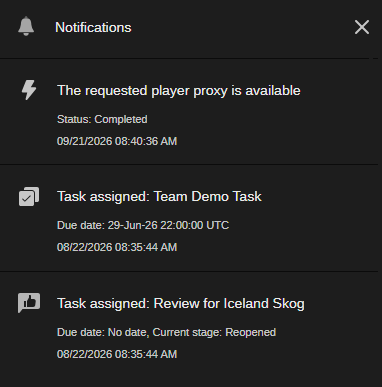
Notifications appear in order that they were received, with the most recent messages appearing at the top of the list. The right-side of the window includes a vertical scroll bar that you can use to navigate to older notifications. The application retains the last 50 notifications for review.
Each notification includes a title and the time at which the notification was generated. Depending on the notification type, additional information can be shown. For example, a Review and Approval notification additionally shows the due date and task stage.
To use your notifications:
-
Click on a Review and Approval app notification.
The Review and Approval app for the review and approval task opens. The attached asset is loaded into the player.
-
Click on a Tasks app notification in the Notifications app.
The Tasks app opens. The corresponding task is selected in the Tasks list and its details are shown in the Details panel.
-
Check the ACC automation notification.
If an asset is attached to the notification, clicking on the notification opens the default app for the referenced asset. If no asset is referenced, clicking the notification does not initiate opening an app.
To close the Notifications app:
-
Click the X in the upper-right corner of the app.
-
Click in another area of the user interface (anywhere outside of the Notifications app).
-
Click on a notification in the Notifications app.