Using the Jobs App
 The Jobs app lets you monitor jobs running within Avid Content Core. Jobs that are running in job source systems like the Proxy Job Lifecycle service, are published by the job source systems to the Jobs Monitor and are then shown in the Jobs app.
For each job, the Jobs app shows the job name and information about its status. If supported by the job provider, buttons that allow actions (such as Cancel or Retry) on the job might be shown to the right of the progress bar.
You can show jobs as a list or in groups. Jobs are grouped according to the type of job, such as "Create proxy: Player". Single job groups can be hidden to get a better overview by selectively displaying only one section. You can display all jobs groups again using the Groups filter on the Jobs app sidebar.
n Jobs are archived from the “Active Collection” to the “Archive Collection” after 48 hours. After 30 days, the archived jobs will be deleted from the “Archive collection".
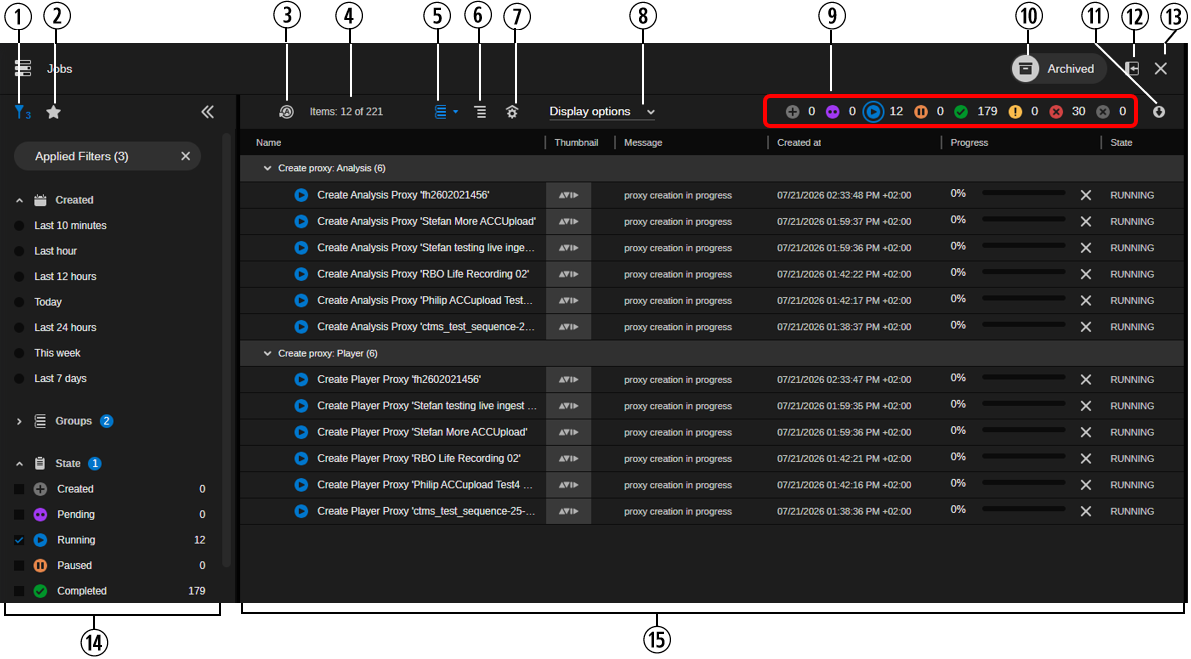
In the Jobs app, you can monitor the jobs of the selected type, apply filters to the jobs displayed in the Jobs list, and modify the Jobs list layout. The following illustration shows an example of what you might encounter when monitoring jobs in the Jobs app if the option to display jobs in groups is active.
|
|
Display or Control |
Description |
|
1 |
Filter button |
Opens the sidebar's Filter tab that lets you apply predefined filters to the jobs displayed in the Jobs list. See Applying Sidebar Filters. |
|
2 |
Favorites button |
Opens the sidebar's Favorites tab that lets you create and apply job favorites. See Creating and Using Job Favorites. |
|
3 |
Refresh button |
Lets you enable and disable an auto-refresh of the jobs shown in the Jobs list. If enabled, the Auto-Refresh option updates your jobs list every 5 seconds. See Refreshing the Jobs List. |
|
4 |
Jobs counter |
Displays information about the number of jobs shown in the Jobs app in the form “Items: <n> of <m>” (for example: Items: 100 of 580). <n> is the number of jobs displayed in the Jobs list, <m> is the number of all jobs that match the applied filters. The numbers are influenced by applied filters and Grouping toggles. Items 0 of <m> is shown when you enable grouping since the collapsed jobs groups are shown in the Jobs list. |
|
5 |
Display Group button |
Toggles displaying jobs in groups on and off:
When displaying jobs in groups is toggled on, you can show and hide the contents of the jobs groups. See Using Job Groups. |
|
6 |
Show Hierarchy button |
Reserved for future use. Currently not supported by the available job types. |
|
7 |
Top-level Filter button |
Reserved for future use. Currently not supported by the available job types. |
|
8 |
Display Options |
Lets you define which columns are displayed in the Jobs app. See Modifying Job List Columns. |
|
9 |
Status icons |
Shows an icon for each job state. Lets you apply a filter to the jobs that are already shown in the Jobs list. To the right side of each icon the number of jobs being in the corresponding life-cycle status is shown. See Applying Toolbar Filters. |
|
10 |
Archived toggle button |
Toggles displaying active or archived jobs:
The Archived toggle button is only visible for Workflow Administrators. See Viewing Archived Jobs. |
|
11 |
Download button |
Downloads the list of jobs that match the current filter criteria in a *.csv file. See Downloading the Jobs List. |
|
12 |
Docking button |
Docks the Jobs app at the left side of the ACC window. |
|
13 |
Close button |
Closes the Jobs app. |
|
14 |
Sidebar: Filter tab |
The controls of the sidebar's Filter tab apply filters to the jobs that are already shown in the Jobs list.
|
|
15 |
Jobs list |
Displays jobs, depending on the filter applied to the app. The Jobs list shows the following columns by default:
You can configure which columns are displayed by using the Display Options menu. See Modifying Job List Columns. (Administrators) Right-clicking a job in the Jobs list opens the Delete job context-menu that lets you delete the selected job. See Deleting Jobs. |
To open the Jobs app:
-
Click the Jobs button on the Fast Bar.
To dock and undock the Jobs app:
-
To dock the app, click the app’s Dock button.
-
To restore the app to take up the full screen, click the Dock button again.
To close the Jobs app:
-
Click the X in the app’s upper right corner.