Using My Collections
 The My Collections app allows you to gather assets that you find in Avid Content Core and save them in a temporary bin for later use. You can think of the My Collections tool as an assets "scratch pad". As you work within ACC, you might find an asset that sparks an idea. You can drag that asset to your Collection and either return to your original task, or continue to gather assets to build on your new creative goal.
The following illustration shows the My Collections window open and empty (left), and then again with assets added to it (right).
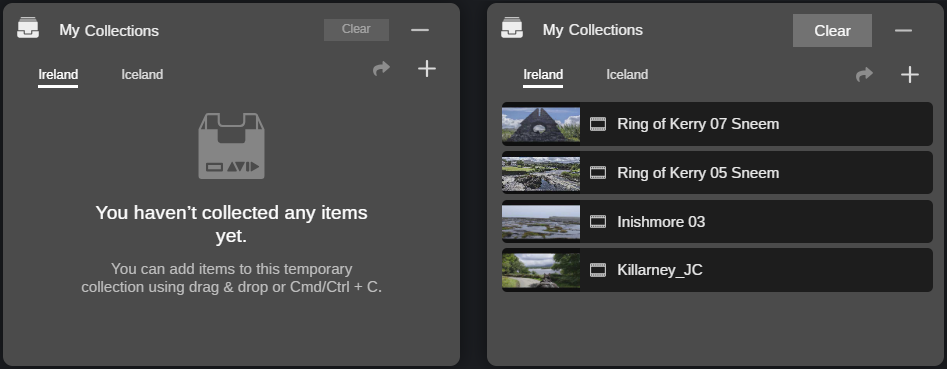
Unlike most other areas of the ACC user interface, the My Collections tool is a floating window that appears initially at the bottom-right corner of the user interface. You can move the window around your screen, or close and reopen it at your leisure to add or remove content. When you reopen the tool, the system displays the window in its last known position. You can also resize the window to increase the visible area.
There are no restrictions on the types of assets that you can add to your collection.
The items that you add to the Collections window are saved until you manually clear them. This means that your saved assets are retained across multiple user sessions.
You can double-click on any asset to load it into the default app for that asset type.
To resize the My Collections window:
-
Click and drag any corner or side of the window to expand its size.
To close the My Collections window:
-
Click the Minimize Application button in the upper-right corner of the app.
-
With the My Collections window in focus, press the Esc key on the keyboard.
Assets that you added to your collection remain there until you manually remove them.
Adding Assets to My Collections
Review the following processes to learn how to add assets to the My Collections window.
The following processes focus on the floating My Collections Window, but the My Collections panel on the Landing Page works similarly to the floating app.
To add content using through the Landing Page:
-
Click the Landing Page button in the Fast Bar.
-
(if applicable) If My Collections includes multiple tabs, select your desired tab for this addition in either the floating My Collections window, or the My Collections panel on the Landing Page.
-
Do any of the following:
-
Click the "Add to My Collections" button on any card in the Trending, Recently Added, or other panels.
-
Click the check box in the upper-left corner of any card, and then click the "Add to My Collections" button at the top of the Landing Page.
If the My Collection panel is not currently on-screen, the Landing Page automatically scrolls to that panel so that you can see the result of this action.
-
Click the check box to the left of the Trending, Recently Added, or other panels to select all assets in that category, and then click the "Add to My Collections" button at the top of the Landing Page.
The Landing Page moves to the My Collections panel so that you can see the result of this action.
Your assets are added to the currently selected tab in My Collections.
-
To add content to the My Collections window using drag and drop:
-
Click the My Collections button in the Fast Bar.
The My Collections window appears on screen.
-
(if applicable) If My Collections includes multiple tabs, select your desired tab for this addition.
-
Select another app, such as Search, and do one of the following to select an asset:
-
Click to select an individual asset.
-
Shift+click or Ctrl+click multiple assets.
-
-
Drag and drop your selection to the My Collections window.
Your assets are added to the currently selected tab in the window.
To add content to the My Collections window using a context menu:
-
(optional) Click the My Collections button in the Fast Bar.
The My Collections window appears on screen.
-
Do one of the following to select an asset:
-
Highlight an asset in the Search app, or other applicable app.
-
Shift+click or Ctrl+click multiple assets.
-
-
Right-click the section and select Copy to My Collections.
Your assets are added to the currently selected tab in the window. You are not required to open the My Collections window prior to performing this action.
n You cannot access the right-click context menu from the Player.
To add content to the My Collections window using keyboard commands:
-
(optional) Click the My Collections button in the Fast Bar.
The My Collections window appears on screen.
-
Select another app, such as Search, and do one of the following to select an asset:
-
Click to select an individual asset.
-
Shift+click or Ctrl+click multiple assets.
-
-
Press Ctrl+C to copy the asset(s).
The selected assets are added to the collection.
Working with My Collections Tabs
When you open the My Collections window for the first time, ACC populates the tool with a default COLLECTION tab. You can add assets to this default space, or create new tabs to organize your content into different categories. The app also allows you to rename tabs for easier tracking.
Avid Content Core allows you to create up to 50 tabs with a maximum of 100 assets per tab.
For a list of keyboard commands, see My Collections Shortcuts.
To create a new My Collections tab:
-
 With the My Collections tool open, click the New Tab button in the upper-right corner of the window.
The app creates a new tab to the right of the existing tab(s) and switches focus to this tab. If you create more tabs than can fit inside the window, you can navigate to the left and right using the arrows on either side of the tabs area.
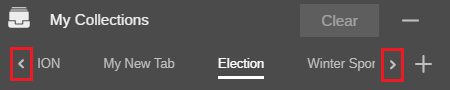
To rename a tab:
-
Do one of the following:
-
Right-click the tab and select Rename from the context menu.
-
Click twice (slowly) on the tab to make the name field editable.
-
-
Type the name of the new tab and either press Enter or click outside of the editable field to confirm the change.
Tab names are limited to a maximum of 100 characters, and each tab is limited to a maximum size of 125 pixels. This means that your full tab name might not be displayed if it exceeds the allotted space. If your tab name exceeds this space, you can hover your cursor over the tab to see the full name as a tool-tip.
To remove a tab:
-
Right-click the tab and select Remove from the context menu.
The system replies with a Remove Tab confirmation window.
-
Do one of the following:
-
Click the Remove button to confirm the deletion of the tab.
All assets included in this tab are removed from the My Collections window. If you have a duplicate asset in another tab, that link to the asset is unchanged and remains in My Collections.
-
Click the Cancel button to abort the deletion process.
-
The My Collections window must include at least one tab. If you attempt to delete all tabs, the window refreshed with a new default COLLECTION tab.
Removing Assets from My Collections
To remove content from the My Collections window:
-
Click the My Collections button in the Fast Bar.
The My Collections window appears on screen.
-
Do one of the following:
-
 Hover your mouse over an asset and click the trash icon that appears to the right of the asset.
 -
Click an asset to select it, and then press the Delete key on the keyboard.
-
Press the Clear button to remove all content from the collection.
In this case the app displays a confirmation dialog box. Click Remove to clear the collection.
All assets in the currently selected tab are removed. The tab itself is not deleted.
-
Delete a tab to remove all assets within that tab. For details, see Working with My Collections Tabs.
-
Using Assets from the My Collections Window
To use content from the My Collections window with another app:
-
Drag and drop an individual asset to the desired app, or the Player.
-
Shift+click or Ctrl+click multiple assets to select them and drag them as a group.
You cannot drag multiple assets to the Player in a single action.
-
 Click the Send to Web Editor button.
Sends the asset(s) in the current collection tab to the Project Bin of your desired Web Editor project.
-
If your collection includes a Web Editor sequence, that sequence is loaded automatically and other supported assets are added to the Project Bin.
If your collection includes more than one sequence, you cannot send the entire collection to the Web Editor. This workflows allows you to send a single sequence only to the Web Editor.
-
If your collection consists of master clips only, one of the following occurs:
-
If you have already loaded a project/sequence into the Web Editor during this session, the assets are added to the Project Bin of that project.
-
Alternately, the Web Editor home page appears and asks you to select a project.
-
-
-
Right-click on an asset to access a context menu with additional options.
This feature is applicable to single-select of individual assets only.
When you drag an asset from My Collections to another area of the user interface, the item is not removed from the collection.