Creating and Using Job Favorites
It is very common for administrators to monitor specific aspects of job execution. For example, it might be useful to monitor jobs that are currently running or jobs that ended in Error state or jobs of a specific group that have been started during a certain time frame. To address these workflows, ACC allows you to save filters applied to the jobs shown in the Jobs app as Favorites.
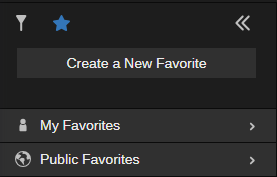
As shown in the following illustration, favorites are divided into two categories:
-
 Personal: Appearing in the list under the My
 -
 Public: Created by users associated with the Workflow Administrator role, public favorites are available to all users.
Favorites are displayed in a list view. Personal favorites appear first in the list under the My
n This version of ACC allows each user to create a maximum of 99 favorites. If you attempt to create additional favorites, you are prompted to delete an existing favorite first. Workflow Administrators can create an additional maximum of 99 public favorites.
Creating a Job Favorite
The following process describes how to create a new
-
Filters (applied from the sidebar or toolbar)
-
Grouping, Hierarchy and Top-level filter
-
Auto-refresh status (enabled/disabled)
-
Current state of the
-
Current state of the "Archived" toggle button (visible for Workflow Administrators)
To create a favorite using the sidebar:
-
 Show the sidebar's Filter area and apply filters. See
 -
(optional) Customize the view of the
Since the look of the
-
 (if necessary) Click the Favorites button at the top of the
 -
Click the “Create a New Favorite” button.
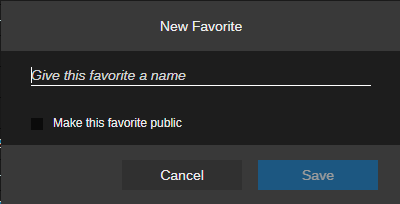
The New Favorite window appears. Note that the "Make this favorite public" check box is only shown for users assigned to a Workflow Administrator role.
-
Enter a custom name. The name is limited to 100 characters.
n If the name exceeds 100 characters, the favorites is not saved and a corresponding error message appears.
You are not required to create a unique name for each favorite. If desired, you can have multiple favorites with the same name.
-
(optional for Workflow Administrators) Enable the “Make this favorite public” check box to make the favorite public.
-
Click the
Alternatively, you can click Cancel to abort the process.
Using a Job Favorite
After you create one or more favorites, you can use the following process to execute a
To use a
-
(if necessary) Click the Favorites button at the top of the
-
Click on one of the favorites in the list.
The display of the
Editing a Job Favorite
After you create one or more favorites, you have the option of editing the following values:
-
The name of the favorite.
-
(Workflow Administrators only) The public / private status of the favorite.
If you are a Workflow Administrator and you edit a public favorite, the changes are propagated to other users the next time that they refresh the
n If you make a filter public that includes an active "Archived" toggle – a feature that is only available for Workflow Administrators –, the "Archived" toggle will be ignored and only active jobs are shown.
To edit a favorite:
-
(if necessary) Click the Favorites button at the top of the
-
Right-click on the favorite and select Edit Details from the context menu.
-
In the Edit Favorite dialog box, alter the parameters of the favorite:
-
(optional) Enter a new name.
n The name must not exceed 100 characters.
-
(optional for Workflow Administrators) Enable or disable the check box for the public
-
-
Click the Save button to save your changes.
Alternatively, you can click Cancel to abort the process.
A public
Reordering Job Favorites
When you create a new favorite, it appears at the top of the list of the My
After you create two or more favorites, you can reorganize the order that the favorites appear in the list using a simple drag and drop operation. Alternatively, you can use this same process to move favorites from one folder to another.
To reorder the list:
-
Right-click on a favorite or in the space below the Create a New Favorite button and then click on the Manage
-
Do one of the following:
-
Click and drag a favorite to a new position or folder.
-
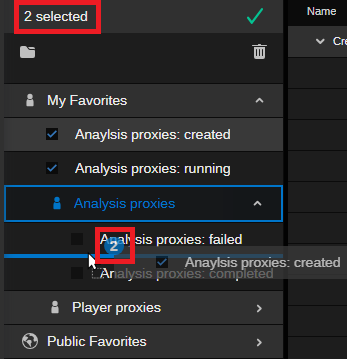
Click the check box to the left of one or more favorites and drag the selection to a new position or folder.
If you select the check box of at least one favorite, a number appears in Manage Favorites header and in the top-right corner of image during the drag action.
-
-
Release the mouse button to add the favorites to the new position or location.
Deleting a Job Favorite
ACC allows you to delete a single favorite or multiple favorites simultaneously. You can use the following procedures to delete one or more favorites.
n Standard users can delete favorites from the My
To delete a single favorite:
-
(if necessary) Click the Favorites button at the top of the
-
Right-click on the favorite and select Delete Favorite from the context menu.
A confirmation window appears.
-
Click the Delete button to confirm the removal of the favorite.
Alternatively, you can click Cancel to abort the deletion process.
To delete multiple
-
(if necessary) Click the Favorites button at the top of the
-
Right-click on a favorite or in the space below the Create a New Favorite button and then click on the Manage
-
Click the check boxes to the left of all favorites that you want to delete.
You can select multiple favorites within the same folder or group, but after you select a favorite in one group, you cannot select a favorite in any other folder or group. For example, you cannot select a favorite in My
-
 Click the Delete button at the top of the list.
A confirmation window appears.
-
Click the Delete button to confirm the removal of the favorite.
Alternatively, you can click Cancel to abort the deletion process.
-
Click the green check mark at the top of the list to exit edit mode.
Creating a New Folder
In addition to creating individual favorites, you can create folders within each favorite category to better organize and manage your saved
Folders are identified by the icon of the category in which they are created.
n Each user is allowed to create a total maximum of 99 folders in the Personal category. If you attempt to create additional folders, you are prompted to delete an existing folder first. Workflow Administrators can create an additional 99 folders in the Public category.
To create a folder:
-
(if necessary) Click the Favorites button at the top of the
-
Right-click on a favorite or in the space below the Create a New Favorite button and then click on the Manage
-
(optional) Click the box to the left of one or more favorites to automatically move the selected favorites into the new folder.
-
 Click on the New Folder button.
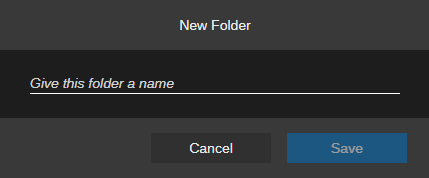
The New Folder window is displayed.
-
Enter a name for the new folder.
-
Click the Save button to save your changes.
The new folder is created at the top of your My
Alternatively, you can click Cancel to abort the process.
-
(optional, Workflow Administrators only) To make the folder public, select the folder and drop it to the Public Favorites area.
-
Click the green check mark at the top of the Favorites list to exit edit mode.
Reordering and Renaming Folders
To reposition the folder in the Favorites list:
-
Right-click on a favorite or in the space below the Create a New Favorite button and then click on the Manage
-
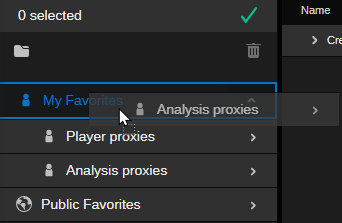
Click and begin to drag your folder to a new position in the list of favorites. You can do any of the following:
-
Drag the folder to a new position in your My
If you drag the folder to a position between two other folders, a thin blue position indicator bar appears between the folders.
-
Drag the folder over the My
-
Drag the folder to another existing folder to create a nested folder structure.
-
(if applicable) Drag the folder to the Public area of the
-
-
When over your desired position, release the mouse button to drop the folder to the new location.
The folder and all of its contents (favorites, other folders) are relocated to the new position.
-
Click the green check mark at the top of the list to exit edit mode.
To rename a folder:
-
Right-click on your custom folder and select Update Folder from the context menu.
-
Enter a new name for the folder.
-
Click the Save button to save your changes.
The renamed folder remains in its position.
Alternatively, you can click Cancel to abort the process.
Deleting a Folder
If you want to delete a folder, you can do so through the Favorites tab in the
n You can delete one folder at a time only.
To delete a folder:
-
Right-click on the folder and select Delete Folder from the context menu.
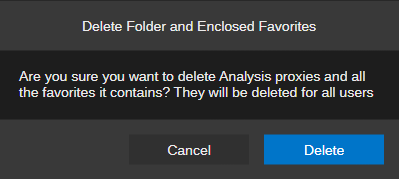
A Delete Folder and Enclosed Favorites confirmation dialog appears.
-
Click the Delete button to confirm the removal of the folder.
Alternatively, you can click Cancel to abort the process.