Applying Sidebar Filters
The
To apply filters to the
The sidebar filters are arranged in the following categories.
|
Category |
Description |
|---|---|
|
Created |
Lets you filter tasks by using The Created filter includes different types such as Today and Last 24 hours. While the Last 24 hours filter displays jobs for a 24 hour period, the Today filter displays only those jobs created between 12:00am and the current time. You should note that these filters respect the time zone of the local client. This means that if you are working with a coworker in a different time zone, their filtered jobs list might be different than yours. Depending on the status of the Archived toggle (show active jobs or show archived jobs), different filters are shown:
|
|
Groups |
Lets you filter the jobs by job groups. Multi-selection is supported. |
|
State |
Lets you apply a status-based filter. Multi-selection is supported. The status-based filter is also available in the toolbar. Both filters are synchronized: when you select a status in the sidebar's Filter tab, the corresponding status icon is automatically selected in the toolbar. |
|
System |
Lets you apply a job source system filter. In this version, only Job Lifecycle Service is shown. |
|
Job Kind |
Lets you filter the jobs by type. Currently, only proxyjob is shown. |
Across categories, the filters are cumulative. For example, if you apply a
n Since jobs are archived after 48 hours some of the creation date range filters, especially in combination with a status-based filter, might deliver no results. See Viewing Archived Jobs.
When you apply a filter, the Filter button in the sidebar header and the Applied Filters button are both updated to reflect the number of categories with applied filters. Within each category (except
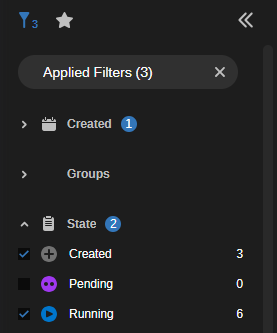
The sidebar can display up to eight entries for each filter category by default. In some cases, the app might display a “show all” button that allows you to select from additional filter options:
To apply a filter:
-
Click the Expand / Collapse toggle button of any collapsed filter group.
A set of predefined, non-modifiable filters is shown. No filter is selected by default.
-
Select the filters you want to apply.
-
Within the
-
For
The
-
To remove filters, do one of the following:
-
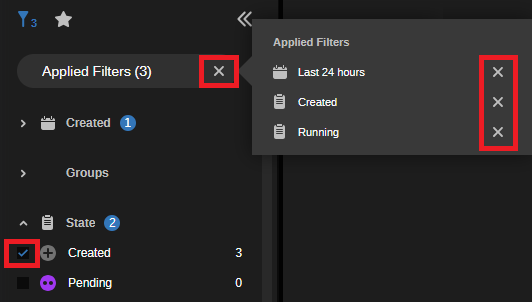
To remove all applied filters at the same time, click the X on the right of the Applied Filters button.
The Filter list is reset and all filters are cleared from the
-
To remove an individual filter, do one of the following:
-
Click on the Applied Filters button, and in the fly-out window that provides more detail on the selected filters click the X to the right of any filter you want to remove.
-
Deselect the check box of the applied filter you want to remove.
The filter is cleared from the
-