Deleting Tasks
The Tasks app allows you to delete tasks at any time. Note the following:
-
Users can delete their Private tasks but no Team tasks.
-
Workflow Administrators can delete all tasks that are shown (Private and Team tasks).
-
You can delete a maximum of 100 tasks at a time.
Note that the multi-deletion feature is only available in List view but not supported in Board view.
-
If you select more than 100 tasks or your selection includes tasks that you are not allowed to delete, the Delete context menu option will be disabled.
-
There is no undo for the delete operation.
-
The Delete context menu option is also available for tasks shown in the My Day panel on the Landing page. See Using the Exploration Panels and Exploring the User Menu.
To delete a task:
-
Do one of the following:
-
 Hover the cursor over the task to be deleted and click the Trash icon that is shown.
 -
Right-click the task and in the context menu that opens, select Delete.
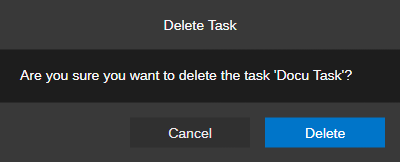
A Delete Task security prompt opens.
-
-
Do one of the following:
-
Click the Delete button to permanently delete the task.
The task is removed from the Tasks area.
-
Click the Cancel button or press the Esc key to exit the deletion process.
-
To delete several tasks at a time:
-
Shift+click or Ctrl+click multiple tasks to select them in the Tasks area.
-
Right-click the selection and in the context menu that opens, select Delete.
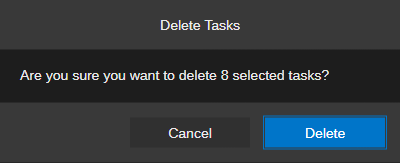
A Delete Tasks security prompt opens. The number of selected tasks is shown.
-
Do one of the following:
-
Click the Delete button to permanently delete the tasks.
The tasks are removed from the Tasks area.
-
Click the Cancel button or press the Esc key to exit the deletion process.
-