User Settings
Avid Content Core provides you with a number of settings that allow you to customize your experience. The following settings are available:
Accessing the User Settings
You can access and modify personal settings in the User Settings dialog box.
To open the User Settings dialog box:
-
 Click the User Menu in the upper-right corner of the user interface, and then select the Settings option.
The User Settings dialog box opens.
-
After you change a user setting, click Save to apply your changes.
Alternatively, you can click the Revert button to return the settings to their previous state.
-
To close the User Settings dialog box, do one of the following:
-
Click outside the dialog box.
-
Click the X (Close) button in the upper right corner.
-
Press the Esc button on your keyboard.
-
Data Collection
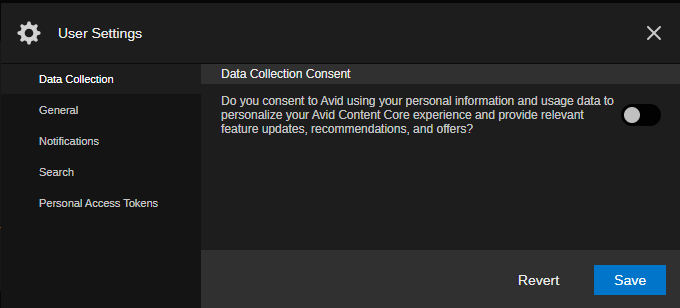
This setting allows you to opt-in or opt-out of the service that allows Avid to collect usage data that can be used to enhance your experience with Avid Content Core.
To configure your preference:
-
Open the User Settings dialog box.
-
In the User Settings navigation panel on the left, select the Data Collection group.
-
Do one of the following:
-
 Click the toggle to switch it to the Blue position to enable this service.
 -
 Click the toggle to switch it to the Black position to disable this service.
You can update this setting at any time. For more information about the type of data that is collected, see the following page on the Avid Knowledge Base: https://kb.avid.com/pkb/articles/en_US/Knowledge/Usage-Data-Sharing-In-Avid-Content-Core
-
-
Click Save to apply your changes.
Alternatively, you can click the Revert button to return the settings to their previous state.