Configuring the Notification Settings
These settings allow you to configure the types of messages that can be delivered to you through the Notifications app. The settings window provides a series of toggles that allow you to enable or disable one or more message types. For more information on notifications, see Viewing Notifications.
To customize your notification options:
-
Open the User Settings dialog box.
-
In the User Settings navigation panel on the left, select the Notifications group.
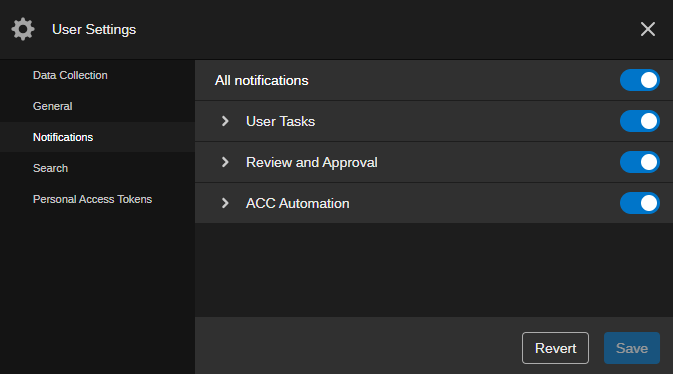
The settings are divided into All notifications, App, and Feature categories. Currently, notifications for the following can be configured:
-
Review and Approval: Lets you enable notifications for requested, reopened, rejected, approved, or canceled Review and Approval tasks.
-
User Tasks: Lets you enable notifications for created, in progress and completed regular user tasks of access type "Team".
-
ACC Automation: Lets you enable notifications when an ACC Automation rule applies.
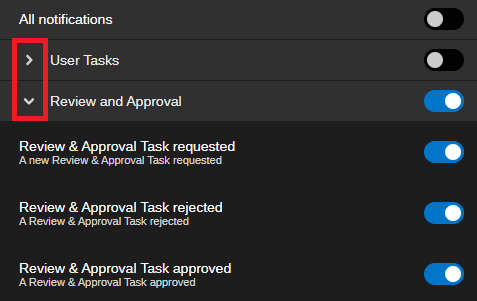
You can click the chevron to the left of an app to show and hide the notification settings for that app.
-
-
Configure the notifications per app in the Activity Notifications section.
Do one or more of the following to customize the settings for your user account:
-
Click the toggle for an individual feature to enable or disable the associated notification. When the toggle button turns blue, the notification is enabled.
-
Click the toggle in the app’s header to enable or disable all notifications for that app.
If you click the app toggle buttons, all notifications for all features within this app are changed.
-
Click the toggle in the All Notifications section to enable or disable all notifications for all apps and features.
-
-
Click Save to apply your changes.
Alternatively, you can click the Revert button to return the settings to their previous state.