Configuring and Using Personal Access Tokens
Personal Access Tokens (PATs) allow you to authenticate your user account against external systems or with APIs by providing those systems with a secure string of characters that act as an alternative password for your account. PATs produce user-context JSON Web Tokens (JWTs) so that PAT-originated requests appear both in logs and Open Policy Agent (OPA) policies as the issuing user, instead of an anonymous service account.
You can use the Personal Access Tokens Settings to self-issue, rotate, and revoke Personal Access Tokens without involvement from either Avid or your local system administrator. The settings are divided into two tabs: Manage and Generate.
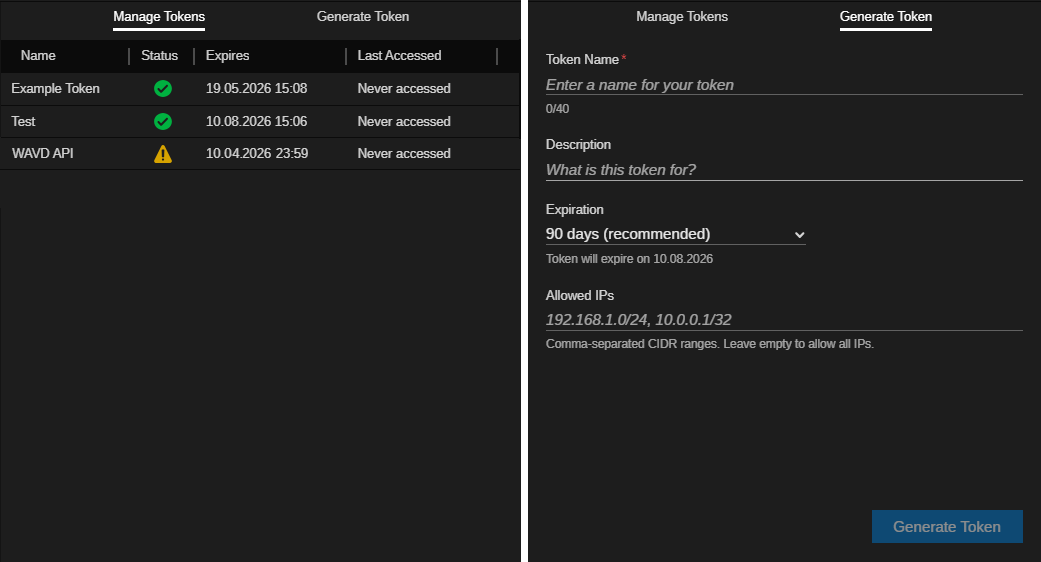
If you have not created any PATs, the Manage Tokens tab displays a "No personal access tokens found" message.
Each token is associated with one of the following status icons.
|
|
Active |
|
|
Expiring Soon |
|
|
Revoked |


You cannot permanently delete a token from this list. Revoked tokens are displayed for historical / informational purposes.
Generating a Token
After you have created a token, you can share it with the external system or API that you want to use to connect to Avid Content Core. The token will be authenticated by Avid Content Core as long as the incoming request is received before the token expires.
To create a new token:
-
Open the User Settings dialog box.
-
In the User Settings navigation panel on the left, select the Personal Access Tokens group.
-
Click the Generate Token tab and enter the following information:
-
Token Name: This name appears in the Name column of the Manage Tokens tab.
-
Description: Enter a friendly description of this token.
-
Expiration: Click the menu to select a default expiration date, or select the Custom option to select a date from the calendar. It is also possible to select the No Expiration option, however this is not recommenced as this option poses a potential security risk.
The 90 day recommendation is intended to provide a balance between security and usability.
-
Allowed IPs: The IP addresses in this range are allowed to use this token to connect to Avid Content Core. You an do any of the following:
-
Enter one or more CIDR ranges
-
Use a /32 range for a single IP address
-
Leave this value empty to allow access by all IPs
-
-
-
Click Generate Token to save your changes.
The system displays the name of your token.
-
Save the name of this token in a safe location.
-
 Click the Eye button to display the token on screen.
 -
 Click the Copy to Clipboard button to save the token to your workstation's local clipboard.
If you fail to save the token information, you must repeat this process or rotate the token to generate a ID.
-
-
Click Done.
-
(optional) Click the Manage Tokens tab to see your new token.
The list of tokens is sorted by time of creation, with the most recent token appearing at the top of the list.
Rotating a Token
When you rotate an existing token, you maintain all aspects of the existing token (name, expiration date, etc), but you generate a new token ID. When you rotate a token, the original remains active for a 24 hour grace period. When the grace period expires, the key moves to a revoked status.
You might consider rotating a token to roll credentials on a regular basis, or to replace tokens that have potentially become exposed without interrupting the system that is using it.
To rotate a token:
-
Click the Generate Token tab.
-
Right-click on the token and select Rotate from the context menu.
-
Save the name of this token in a safe location.
-
Click the Eye button to display the token on screen.
-
Click the Copy to Clipboard button to save the token to your workstation's local clipboard.
If you fail to save the token information, you must repeat this process to generate a new token.
-
-
Click Done.
The rotated token is added to the top of the list of tokens and your original token is identified in the Manage Tokens tab with a yellow warning that reminds you that it will expire soon.
Revoking a Token
You can revoke a token to disable it at any point. Avid Content Core denies access to any system that attempts to use a revoked token. You cannot re-enable a revoked token, nor can you rotate a revoked or expired token.
To revoke a token:
-
Click the Generate Token tab.
-
Right-click on the token and select Revoke from the context menu.