Using the Site Registry App
 Avid Content Core allows connecting and integrating various systems, including systems running on remote sites. For example, you can connect a MediaCentral Cloud UX site and the systems running in the site. The ACC Site Registry keeps track of all connected sites and systems and manages the information to connect with them.
The Site Registry (SR) app allows Tenant Administrators to view information about the sites and systems that are connected to ACC. Additionally, the SR app shows a Content Core site, which is the representation of Avid Content Core as a site in the registry.
-
The local site Content Core is automatically added by the Site Registry.
-
A new MediaCentral Cloud UX site appears in the Site Registry app after the Tenant Administrator connects it to Avid Content Core.
|
|
Section |
Description |
|---|---|---|
|
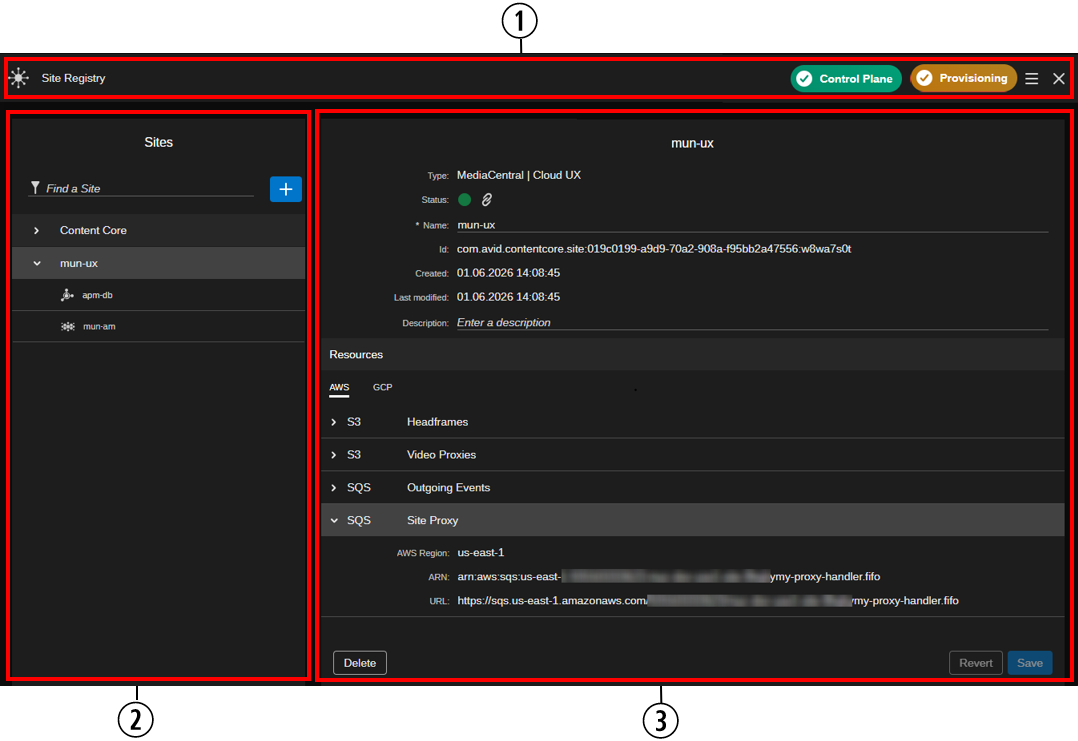
1 |
Header |
The header at the top of the Site Registry app provides you with a health check of the control plane and site provisioning for the MediaCentral sites. For more information, see Reviewing the Site Registry App Header. The App Menu lets you copy the JWT token that is currently used for the ACC access to the clipboard. For more information, see Obtaining the JWT Token. |
|
2 |
Sites |
The Sites area of the app displays a list of all sites that are connected to Avid Content Core in a table format. Each row can be expanded to display the individual systems that are connected to each of these sites. Systems that are not online are shown dimmed. If no system is connected to the site or all systems are not online, the site entry is dimmed once you select it in the Sites panel. The header of the Sites area provides additional options:
|
|
3 |
Details |
If you select a site in the Sites panel, the Details panel on the right side of the app displays additional information about that site. If you select an individual system, the right-side panel is updated with information about that system. At the bottom of the Details panel, Delete, Revert and Save buttons let you apply actions. For more information, see Reviewing and Editing Site Details, Deleting a Site and Reviewing and Editing System Details. |
In this version, the following limitations apply:
-
Your Avid Content Core system can connect to up to ten MediaCentral Cloud UX sites (with 50 systems in total across all sites).
-
The workflow is limited to Avid Production Management and / or MediaCentral Production Management systems and Asset Management systems.
The communication between ACC and the ground systems/sites is done via SQS queues: ACC sends SQS messages into queues owned by ACC, and ground sites monitor these queues. When a MediaCentral Cloud UX site is registered, the ACC Site Registry creates these SQS queues. You can see the SQS queue connection information in the site details of each MediaCentral Cloud UX site.
To access the Site Registry app:
-
Sign in to ACC with an account that is associated with the Tenant Administrator role.
-
 Click the User Menu in the upper-right corner of the user interface and select the Admin Mode option.
While the ACC UI switches to admin mode, a "Please Wait" message is displayed.
-
 In the Admin mode Fast Bar, click the Site Registry button.
The Site Registry app opens.
If your ACC account is not associated with the Tenant Administrator role, you cannot access the Site Registry app.
Obtaining the JWT Token
n When registering a MediaCentral Cloud UX site, as described in Registering a New Site, obtaining the JWT Token is no longer required. The new site registration flow uses a registration URL.
The Site Registry app allows a Tenant Administrator to copy the JWT token that is currently used for the ACC access to the clipboard.
Background (JWT token based registration flow): The registration of a MediaCentral Cloud UX site can be started on MediaCentral Cloud UX side. For this, the ACC Site Registry needs to be called and authenticated. To do so, a Tenant Administrator copies the JWT token from an active ACC session and, using the copied JWT token, then continues registering the site in MediaCentral Cloud UX.
To copy the JWT token:
-
In the Site Registry app header, click the App Menu button.
-
Select Copy JWT Token.
The token is saved to your local workstation's clipboard.
-
Paste that value into a temporary space, such as a simple .txt file on your local workstation.
Reviewing the Site Registry App Header
The Site Registry app shows the status of the control plane and of the site provisioning for the MediaCentral sites, and allows to retry the provisioning in error case.
If ACC determines that control plane and site provisioning are performing as expected, the header shows a green pill for each component. If a problem is detected, the pill might appear as yellow or red, depending on the severity of the issue.
Each pill allows you to obtain additional status information by hovering your cursor over the health indicator. In the event of a warning or error, this tool-tip might help you identify the source of the problem.
Control Plane
|
Pill Color |
Description |
|---|---|
|
|
The Control Plane status is "active". |
|
|
The Control Plane status is "updating". |
|
|
The Control Plane status is neither "active" nor "updating". |



Provisioning
The provisioning pill indicates the overall provisioning status of all MediaCentral sites:
-
MediaCentral sites that are registered in the site registry.
-
MediaCentral sites for which the control plane returns cloud resources.
|
Pill Color |
Description |
|---|---|
|
|
The provisioning status is "active". Cloud resources for all registered MediaCentral sites have been provisioned and there are no orphaned sites. |
|
|
The control plane is currently provisioning or deprovisioning cloud resources. A tool-tip shows the affected site(s).
|
|
|
The cloud resources are out of sync. Provisioning or deprovisioning of cloud resources failed, or there are provisioned cloud resources for a site which should not be available; therefore ACC is in an inconsistent state. A tool-tip shows the affected site(s) or orphaned resource(s) or both.
|




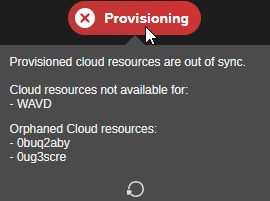
If the Provisioning pill is red and the Control Plane pill is green, you can retry the failed provisioning.
To retry provisioning:
-
Hover your cursor over the red Provisioning pill.
-
 Click the Retry Provisioning button that is shown in the tool-tip.
A Retry provisioning triggered message appears.

The Control Plane and Provisioning pills turn yellow to indicate that provisioning is in progress.
Once provisioning is successfully finished, the Control Plane and Provisioning pills turns green.