Reviewing and Editing Site Details
When you select a row in the Sites area of the app, details about that site appear on the right.
-
For sites of type MediaCentral | Cloud UX, the panel is divided into a general and a Resources section, and might show also a Site Details section.
-
For the Content Core site, the panel only shows the general section.
You can edit some site information for internal use in the Site Registry app. Additionally, you might want to copy information from the site details, such as the ARN or URL of a Resource for usage outside the Site Registry app.
General Section
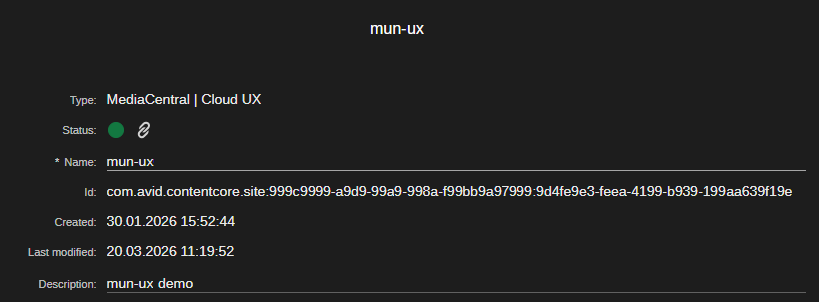
The General section shows basic site information.
|
Section |
Description |
|---|---|
|
Type |
Applicable types are:
|
|
Status |
Provisioning status icon.
|
|
|
The site provisioning status is "active" |
|
|
The site provisioning status is "provisioning". |
|
|
The site provisioning status is "failed". |
|
|
Create registration link button: Creates a registration link and copies it to your local clipboard. Use the link to finish the site registration procedure in MediaCentral. The button is not shown for the Content Core site. For more information see, Registering a New Site. |
|
Name |
|
|
ID |
This is an identifier for the site. The Id can be copied. |
|
Created |
Created: Date and time when the site was created in the Site Registry. |
|
Last modified |
Last modified: Date and time when the site was last modified. |
|
Description |
Description: You can enter a description for the site if desired. The description is only used within the Site Registry app. |


Site Details
For the Content Core site, no Site Details are shown. For sites of type MediaCentral Cloud UX, the pane might show properties that are sent from the backend for the site but might also not be shown at all.
Resources
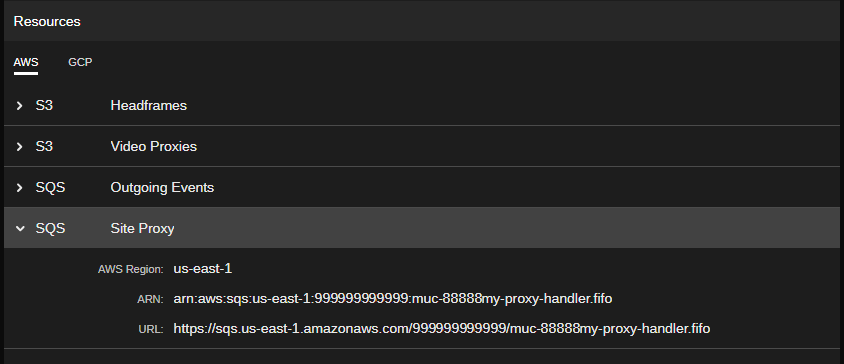
For the Content Core site, no Resources are shown. For sites of type MediaCentral Cloud UX, the pane shows information on the provisioned cloud resources organized in two tab.
|
Section |
Description |
|---|---|
|
AWS Tab |
The AWS tab shows S3 bucket and SQS queue information:
Information of each field can be copied. |
|
GCP Tab |
The GCP tab shows information on the bucket for the analysis proxy:
Information of each field can be copied. |
To filter sites by name:
-
Click in the "Find a site" field and type the name you want for search for.
While you type, a "contains" search is applied; you do not need to type the entire name. Only sites that include your search term in the Name field are shown in the Sites pane.
To remove the name filter, click the X button that is shown to the right side of the Find a site field.
To edit site properties:
-
In the Sites pane, select the site to be edited.
The Site Details are shown in the Site Configuration pane.
-
In the Site Configuration pane, enter a new site name in the Name field.
-
Enter a new description in the Description field.
-
Do one of the following:
-
Click the Save button to save your changes.
-
Click the Revert button to change the settings back to their previous state.
-
To copy property values:
-
Hover the mouse pointer over a field.
Most fields of the Site Details can be copied, such as Id or any field in the Resources section.
The Copy to Clipboard icon is shown to the right side of the hovered field.
-
 Click the Copy to Clipboard icon.
The field contents is saved to your local workstation's clipboard.
-
Paste that value into a temporary space, such as a simple .txt file on your local workstation.