Registering a New Site
The site registration process starts in the Site Registry app. Here, a new site is registered and a registration link is created that then is used to finalize the registration in MediaCentral Cloud UX.
n You can register a maximum of ten sites.
On a high level, the site registration flow can be described as follows:
-
Open the Site Registry app.
The Site Registry app shows the status of the Control Plane and the status of the currently registered MediaCentral sites.
n If the Control Plane status is not “active”, a MediaCentral site cannot be registered. The status of the Control Plane is not checked when registering sites that do not require the provisioning of cloud resources.
-
Use the Register Site (+) button to register a new MediaCentral site.
-
The Site Registry app calls the Site Registry.
The result is a site-registration task. In the background, the control plane will provision the cloud resources. In this phase:
-
Task status is “processing”.
-
Control Plane status should be “Provisioning”.
The Site Registry app periodically queries the overall site-provisioning status from the Site Registry and updates the Control Plane and Provisioning pill information.
-
-
When the site's provisioning status is “active” (meaning: the site is registered and the cloud resources for it have been provisioned), use the "Create registration link" button to call the Site Registry for a registration token and copy the registration URL to the clipboard. This is a "pre-signed" URL (with limited lifetime) that returns a JSON with required information for MediaCentral Cloud UX. The registration link is valid for 15 minutes.
-
Log in via ssh to MediaCentral Cloud UX.
-
Call accctl with the URL of the copied registration link.
accctl register --registration-url <reg-url>accctl fetches the JSON via this URL and configures the MediaCentral site to work with the ACC tenant.
To register a new site:
-
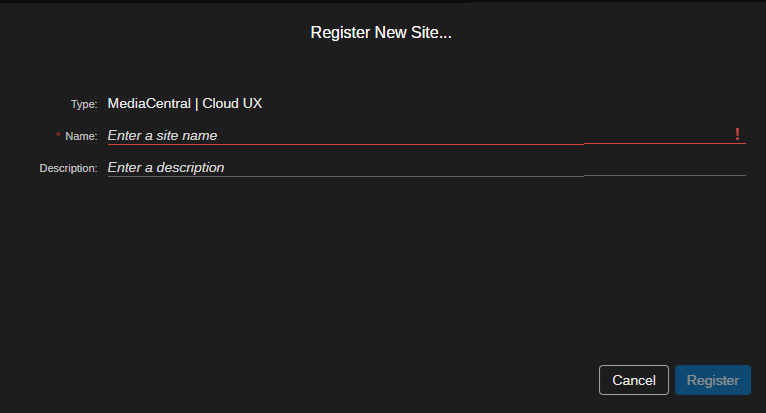
 Click the Register Site button.
The Details panel shows Register New Site.
-
Enter a name for the site in the Name field.
-
(optional) Enter a description in the Description field.
-
Click the Register button.
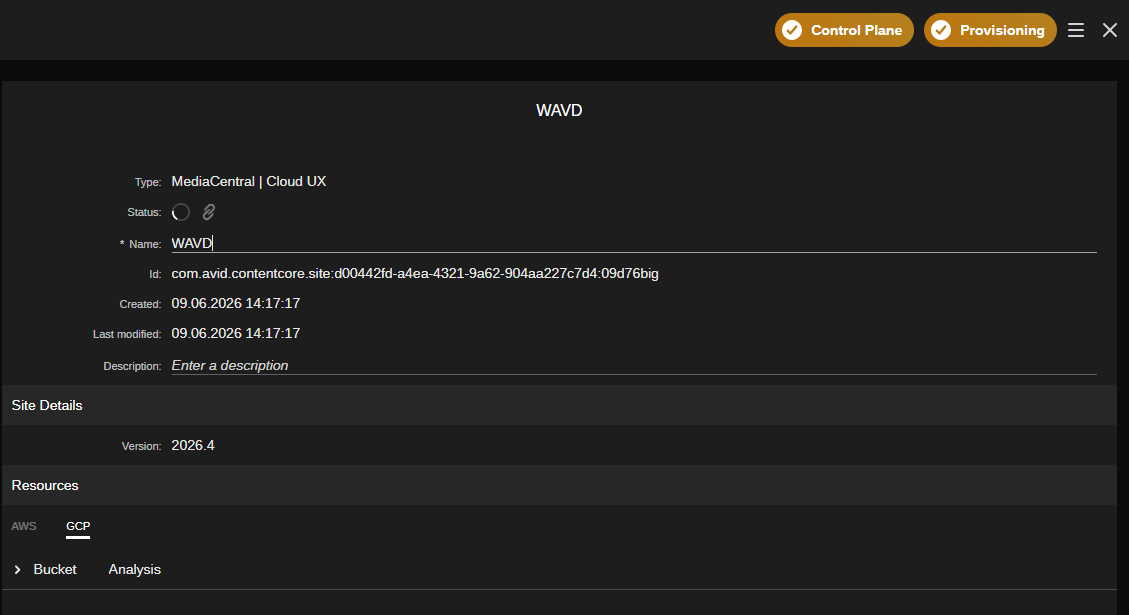
The Control Plane and Provisioning pills in the SR app header turn yellow. The new MediaCentral Cloud UX site is shown in the Sites and Details panels with the name you entered. The Status icon shows a spinning wheel that indicates that the provisioning of cloud resources is in progress.
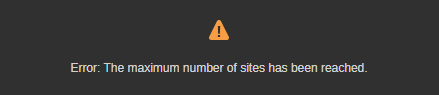
If already 10 sites have been registered, the new MediaCentral Cloud UX site is not shown, instead the Register New Site section stays and a message appears. Once you click anywhere in the UI, the message and the Register New Site section are removed from the Details panel.
-
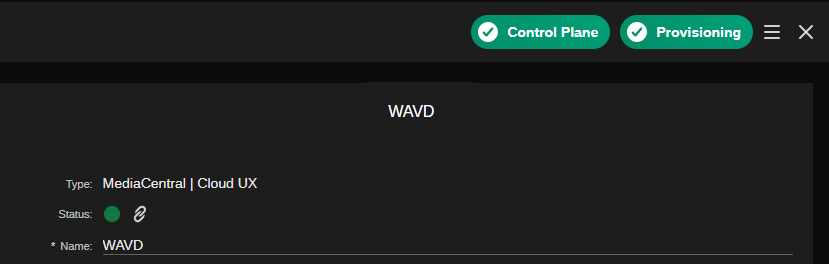
Wait until the Status icon of the site turns green (means: the cloud resources have been provisioned for the site). This can take several minutes.
-
 Click the Create Registration Link button.
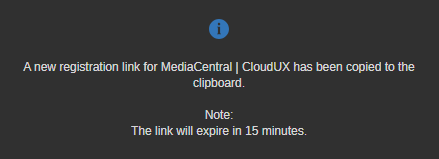
A registration URL is created and saved to your local workstation's clipboard. A registration link copied message appears. Note that the registration link is only valid for 15 minutes.
Paste that value into a temporary space, such as a simple .txt file on your local workstation.
-
Log in to MediaCentral Cloud UX via ssh and complete the registration.
For more information, see "Registering MediaCentral Cloud UX with Avid Content Core" in the Avid MediaCentral Cloud UX Installation Guide.