Using the Simple Search
When you first sign in to Avid Content Core, the search bar on the Landing Page might be the first thing that you use to get your session started.

This "natural language search" field allows you to complete semantic searches. Semantic searches focus on the meaning of your search term, and not just the actual text that you enter into the search field. You are not required to know the name of an asset nor the contents of any other text-based metadata. You can type or speak any word or phrase and ACC finds any and all assets that are related to your search.
For example, you could search for the word "beach" and ACC might return any of the following:
-
Assets with the word beach in its text-based metadata (such as the asset name).
-
Assets that do not have the word beach in any text-based metadata, but the asset includes video that shows footage of a beach.
Alternatively, you could get more specific in your search. For example, maybe you want to find a "woman on beach with white hat".
-
Assets whose audio includes the word beach.
-
Assets that might be related to that topic. For example, the search might return images that show a sand castle, or a sail boat, or a sunset over the ocean. Although these results might not be an exact match for your search, ACC provides related assets to assist you in developing your story.
-
Assets that show the word beach on-screen, such as a street sign that says "Beach access this way". This type of search is possible through the use of Optical Character Recognition. OCR is a process that converts images into machine-readable text.
As an alternative example of this technology, consider a recording of a two hour breaking news broadcast in which the video includes a "ticker tape" banner of scrolling text. The OCR process creates an index of every word and image that is displayed over that two hour time period — and it's all searchable.
With the exception of the Search app, Avid Content Core displays the semantic search bar at the top of the user interface. If you are not already in the Search app, executing a search from this bar at opens the Search app in the main area of the user interface — replacing any app that might already occupy this space.
n If you dock the Search app, the semantic search bar is not displayed for either the docked app or the main app.
Simple searches display results by relevance, where the most accurate result is listed at the top of the list.
Running a Simple Text Search
This process describes how to use your keyboard to execute a simple natural language search. Simple searches do not respect some traditional search concepts, such as enclosing a specific phrase in quotes, or using wildcard characters. For best results, enter simple text phrases when using the simple search.
To start a simple text-based search:
-
Type your search term or phrase into the search bar at the top of the user interface, and press Enter or Return.
ACC executes your search and displays your results in the Search app.
Initiating a Simple Voice Search
Instead of typing your search term or phrase, you can use the Microphone button on the right-side of the search bar to talk to Avid Content Core.
To start a simple voice-based search:
-
 Click the microphone button on the right-side of the search bar.
The microphone button turns red as a visual reminder that it is active.
-
(if applicable) Due to browser security or your personal settings, your browser might display a pop-up window that asks you to grant the site permission to access your microphone. The following illustration shows an example of this security feature.
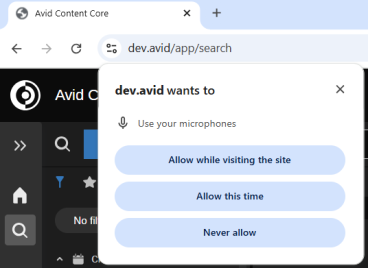
Options might change with browser updates. Consult the Google Chrome documentation for more information on enabling and disabling microphone access.
Continue by selecting one of the Allow options.
-
Speak the word or phrase for which you want to search.
As you speak, the word or phrase appears in the search bar. When you've finished speaking, the microphone button turns grey again after a short pause.
-
Click the Search button.
ACC executes your search and displays your results in the Search app.
-
(optional) Use filters to limit your results. See Using Filters.
Searching by Image
In addition to text and voice searches, Avid Content Core can analyze local image files and search for assets that relate to the content within that image. This feature works similarly to all other semantic searches in that ACC is not necessarily looking for an exact match to your image, but instead to content that feels connected to that image. However, if that image is an exact match for any frame of media, that result will likely be rated higher than other results.
This process works by reading and deconstructing the image into encoded text that can be analyzed by the search back-end. The image is not uploaded in its original format to any external system. The image analysis process is transient. Administrators are not required to take any action to clear any data as it is not saved beyond its use in the current search.
If you want to search by image, the file must meet the following criteria:
-
Must be of type jpeg, jpg, or png
-
Must be 128x128 pixels or larger
n The menu to the right of the File Name field might list more image types than are supported. This list is populated by your operating system and not by Avid Content Core.
-
Must be no more than 5MB in size
If you select a file that does not meet these specifications, ACC displays an error to alert you to the invalid image.
To start an image-based search:
-
 Click the image button on the right-side of the search bar.
The Image Search interface appears.
-
Do one of the following:
-
Drag and drop an image to the Image Search panel.
-
Click inside the Image Search panel to navigate to an image file on your local workstation and click Open.
The image is displayed in the panel.
-
-
Click the Search button to initiate the search.