Defining Actions
Define the parameters of the action to be executed in the action-specific section of the Details panel.
See the following topic:
For the input fields of the action specifications, you have specific options. See the following topics:
-
If you use an expression, you might want to test the expression against a defined change event. See Using the Rules Simulator for Consistency Checks.
Defining a Notification Action
Using the Notification action you can configure notifications and define which users of your ACC tenant should receive the notifications. When the rule applies and a Notification is sent, the configured users will receive a notification, as shown in the following example.
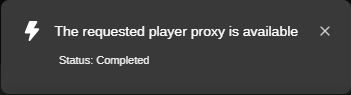
This notification may include a link related to the triggering asset of the rule: In this case, the default app of the asset opens in ACC when a user clicks the notification. For more information, see Viewing Notifications.
The following procedure describes how to provide input for fields of type "Literal" (default). See Defining the Input Type: Literal, Property or Expression.
To define a Notification action:
-
In the Define Rule panel, select the action Notification.
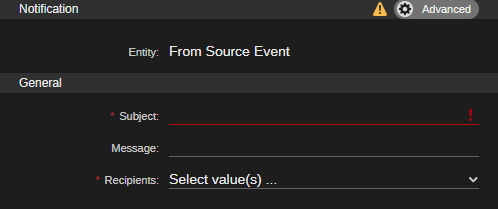
In the Details panel, the Notification section is shown.
-
(optional) Change the default behavior how the entity to be used is retrieved. By default, the entity ID from the Source Event is used.
Right-click the Entity label and do one of the following:
-
Select Literal and enter an entity ID.
-
Select Property and then select a property to resolve the entity ID(s) from.
-
Select Expression, then provide an expression to resolve the entity ID(s) on run-time.
-
Select From Source Event. The entity ID from the Source Event is used. This is the default value.
-
Select Not Set if no entity is to be attached to the action. In this case, the notification will not include a deep link related to the triggering asset.
-
-
In the Details panel, type a text that is to be shown as subject of the notification in the Subject field.
-
(optional) Type a message text in the Message field.
-
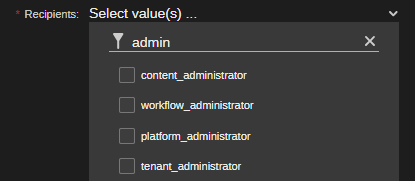
Select one or more users which should receive notifications from the Recipients list.
The Recipients list shows all users that are retrieved for your ACC tenant. Use the filter field to apply a filter to the displayed users, as shown in the following illustration.
-
Do not enable the Advanced toggle button and modify the additional property that is shown.
-
In the Define Rule panel, click the Save button to save the rule.