Creating a Rule
During the rule creation process, you will add multiple items to the rule and configure property values. You can choose to either add items one at a time, configuring the properties for each as you add them, or you can add all of your items first and then configure the properties as a second step.
For more information, see the following topics:
Adding a New Rule
The following procedure describes how to add all of your items first to a new rule and then configure the properties as a second step.
To create a rule:
-
 Click the Rules Editor button in the Administrator Fast Bar.
 -
Select Content Core Jobs from the app’s sidebar.
-
(optional) Temporarily stop event processing in the Rules Engine. See Pausing and Resuming Rules Engine Event Processing.
-
 In the Rules and Items panel, click the Add new rule button.
The Rules and Items panel switches to the ITEMS tab. The Define Rule panel shows placeholders for the items you can add to the rule. The Details panel shows a few basic controls.
-
Add a name for the rule: In the Details panel, replace the placeholder "New Rule" in the Rule Name field.
Rule names need to be unique. If you enter a name that is already used for another rule, the name will be appended with a counter in brackets when you save the rule.
-
(optional) Click the Expand toggle button in front of Additional information and enter a comment in the Comment text box. The comment is only used within the Rules Editor app.
-
Add one trigger: In the Rules and Items panel's ITEMS tab, click the trigger you want to add: Created, Updated or Deleted.
-
Add one entity: In the Rules and Items panel's ITEMS tab, click the entity you want to add.
-
Add one or more Actions: In the Rules and Items panel's ITEMS tab, click the action you want to add. You can add up to 10 actions.
-
(optional) Define filter conditions for the entity.
-
In the Define Rule panel, select the entity.
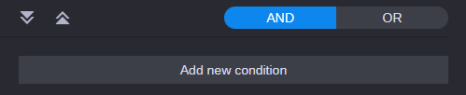
In the Details panel, the initial controls for the Condition section are shown.
-
In the Details panel, click the Add new condition button.
The Condition 1 section is shown. The top-most entry in the Attributes and Comparison Operator lists is preselected.
-
Select the attribute from the Attributes list.
-
Select the operator that should apply for the condition from the Comparison Operator list.
-
Depending on the selected operator, define additional values.
-
(optional) Define additional conditions. You can create a maximum of 10 conditions for a rule.
-
(optional) Define if the conditions are to be combined by AND or OR by clicking the corresponding button.
For more information, see Defining Conditions for an Entity.
-
-
Define the parameters for a Notification action.
-
In the Define Rule panel, select the action Notification.
-
In the Details panel, type a text that is to be shown as subject of the notification in the Subject field.
-
(optional) Type a message text in the Message field.
-
Select one or more users which should receive the notification from the Recipients list.
For more information, see Defining a Notification Action.
-
-
 Enable the rule: In the Details panel, click the gray Enable toggle so it turns blue.
 -
Click the Save button to save the rule.
-
(if paused) Resume event processing in the Rules Engine. See Pausing and Resuming Rules Engine Event Processing.
Validate on Save
When you save a new or an edited rule, the rule is validated. If an issue is detected, a corresponding message or prompt appears.
Unsaved Changes
When you select another rule in the Rules and Items panel or use the Add new rule button while you are editing a rule and have not saved your changes yet, you are prompted to save or discard the changes.
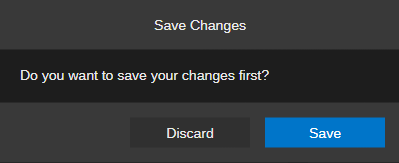
Do one of the following:
-
Click Discard all changes.
-
Click Save to save all changes.
Validation Issues
When you save the rule it is validated and parsed. If issues are detected, the results of the validation are summarized in a Validation dialog box. Validation issues are shown as warnings, parsing issues are shown as "incomplete".
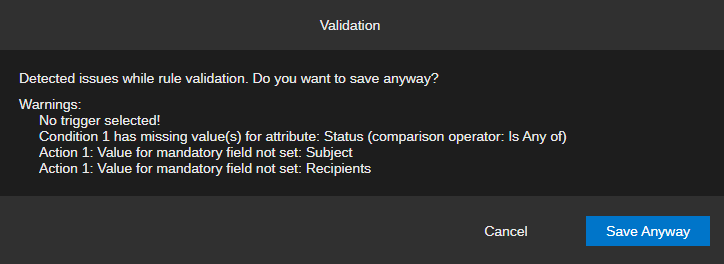
Do one of the following:
-
Click Cancel and resolve the listed issues before saving again.
-
Click Save Anyway to save the rule with validation issues. Items shown as incomplete, are completely removed from the rule.