Using the Header Pills
The header at the top of the app provides you with a health check of the back-end components that enable the functionality in the Rules Editor app and can also be used for pausing and resuming event processing in the Rules Engine. For more information, see the following topics:
Pausing and Resuming Rules Engine Event Processing
When you create, edit or import rules, it might be useful that you temporarily pause the event processing in the Rules Engine; for example, when you import a large number of rules with "Enabled" status. This helps you to avoid unintended effects on your workflows because of missing or unintended rule triggering and failed or unintended action execution.
Use the Rules Engine pill in the Rules Editor app header to stop and resume job processing in the Rules Engine.
To pause and resume event processing in the Rules Engine:
-
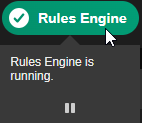
In the Rules Editor app header, hover the cursor over the Rules Engine pill.
A tool-tip opens.
-
 Click the Pause Rules Engine processing button in the tool-tip.
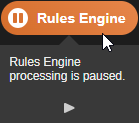
Event processing in the Rules Engine is stopped. The color of the Rules Engine pill switches to orange. In the tool-tip, the Resume Rules Engine processing button is shown.
-
To resume event processing in the Rules Engine, hover the cursor over the orange Rules Engine pill.
-
 Click the Resume Rules Engine processing button in the tool-tip.
Event processing in the Rules Engine is resumed. The color of the Rules Engine pill switches to green.
Reviewing Rules Editor App Status Information
The header at the top of the Rules Editor app provides you with a health check of the back-end components that enable the functionality in the Rules Editor app. If Avid Content Core determines that the component is performing as expected, the header shows a green pill for the component. If a problem is detected, the component might appear as yellow or red, depending on the severity of the issue. When status data is retrieved from the backend – you open the Rules Editor app or click on an entry in the sidebar – a component might turn gray for a short period of time.
Each component allows you to obtain additional status information by hovering your cursor over the health indicator. In the event of a warning or error, this tool-tip might help you identify the source of the problem.

The Rules Engine pill can also be used for pausing and resuming event processing in the Rules Engine. See Pausing and Resuming Rules Engine Event Processing.
|
Component |
Description |
|---|---|
|
|
During normal operation, this health indicator should report that the “Rules Engine is running”. |
|
|
Event processing in the Rules Engine has been paused. |
|
|
The Rules Engine health indicator turns red in the following cases:
|
|
|
During normal operation, this health indicator should only show the connected Action Types for the selected system without additional message. |
|
|
The Action Engines health indicator turns yellow if one of the registered Action Engines is in error state. |
|
|
The Action Engines health indicator turns red in the following cases:
|
|
|
When you select the category Other, the Data Models pill always turns gray. This is the normal operation mode because for the category Other data model information can not be retrieved. |
|
|
During normal operation, this health indicator should report "Metadata information retrieved for Content Core Jobs". |
|
|
The Data Models health indicator turns red if the attributes cannot be retrieved for the selected system. |









To update the health check information:
-
In the Rules Editor app sidebar, select an entry.