Defining Conditions for an Entity
For any entity selected in the Define Rule panel, you can define filters (conditions). Defining conditions helps you elaborating the rule but is not a mandatory configuration step. You can define a maximum of 10 conditions for an entity. When you define more than one condition you can decide how the individual conditions are to be combined; by default, conditions are combined by AND.
When you define conditions for the entity, you select attributes and comparison operators. Depending on the attribute type different operators are supported, as listed in the following table.
|
Comparison Operator |
Description |
|---|---|
|
The Is Set/Is not Set operators check if the value for the attribute is set/not set. |
|
The Is Updated/Is not Updated operators check if the value for the attribute is updated/not updated. |
|
The Is Any of/Is None of operators check if at least one of the provided values is found in the attribute value (as an exact match)/none of the provided values is found in the attribute value. |
|
The Transitions operator checks if the value of the selected attribute has changed from a defined Previous Value to a defined Current Value. |
(1) Not supported for the attributes of Content Core Jobs entities
Some operators are very simple and require you to only select the operator. Others let you define more complex conditions. See the following topics:
Using the Is Set and Is Not Set Operator
The Is Set/Is not Set operators are very simple and require you to only select the operator and the attribute for which the operator should apply.
The Is Set/Is not Set operators check if the value for the attribute is set/not set.
To use the Is Set and Is not Set operators:
-
In the Define Rule panel, select an entity.
-
In the Details panel, do one of the following:
-
Click the Add new condition button to use the operator for a new condition.
-
Go to an existing condition to replace the used operator.
-
-
Select an attribute from the Attributes list.
-
Select the Is Set or the Is not Set operator from the Comparison Operator list.
Using the Is Updated and Is Not Updated Operator
The Is Updated/Is not Updated operators are very simple and require you to only select the operator and the attribute for which the operator should apply.
The Is Updated/Is not Updated operators check if the value for the attribute is updated/not updated.
To use the Is Updated and Is not Updated operators:
-
In the Define Rule panel, select an entity.
-
In the Details panel, do one of the following:
-
Click the Add new condition button to use the operator for a new condition.
-
Go to an existing condition to replace the used operator.
-
-
Select an attribute from the Attributes list.
-
Select the Is Updated or the Is not Updated operator from the Comparison Operator list.
Using the Is Any of and Is None of Operator
The Is Any of/Is None of operators check if
-
at least one of the provided values is found in the attribute value (as an exact match).
-
none of the provided values is found in the attribute value.
To use the Is Any of and Is None of operators:
-
In the Define Rule panel, select an entity.
-
In the Details panel, do one of the following:
-
Click the Add new condition button to use the operator for a new condition.
-
Go to an existing condition to replace the used operator.
-
-
Select an attribute from the Attributes list.
-
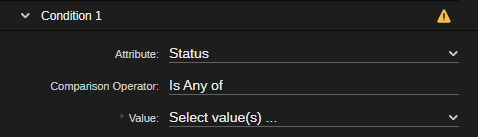
Select one of the above mentioned operators from the Comparison Operator list.
-
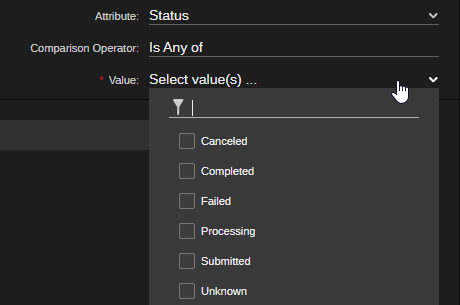
Click the drop-down arrow at the right side of the Value list.
-
In the list that opens, select one or more values.
-
Click outside the list.
-
(optional) To remove a value, open the Value list, deactivate the check box of a selected value and click outside the list.