Changing the Task Priority (List View)
The Priority menu serves as communication tools that help you convey important information about the
Note the following limitations for changing the priority of
-
-
You can only change the priority of one
To change the priority of a
-
Do one of the following:
-
To change the priority in the task details, open the Details panel for the task.
-
To change the priority in the Tasks app List view, show the Priority column if the column is hidden. See Modifying Tasks List Columns (List View).
For information on how to change the priority of a task in Board view, see Changing the Priority
-
-
Click on the Priority of the
-
Select the priority you want to assign from the menu.
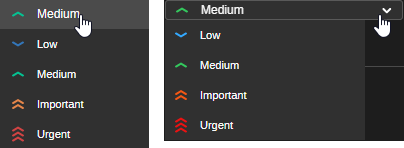
The Priority menu in the Tasks list (left) and Details panel (right).
The new priority is assigned to the