Assigning a Task to Another User
Usually a user gets assigned to a team task from another user, based on an event, or a manual process. Assigned team tasks are editable for users with the required permissions. If you have the required permissions, the Tasks app offers you an option that allows you to assign the team task to you or another user.
Note that you cannot assign a private task to another user. When creating or editing a private task, the Assignee field is not shown in the task details. The systems nevertheless sets you as the assignee of your private task in the backend to include private tasks in the My Tasks filter. See Applying Toolbar Filters. In the Assignee column of the Tasks list, the user selection control to assign the task to another user opens only for a team task but not for a private task.
To change the assignee of a task:
-
Do one of the following:
-
To change the assignee in the task details, open the Details panel for the task.
-
To change the assignee in the Tasks app List view, show the Assignee column if the column is hidden. See Modifying Tasks List Columns (List View).
-
-
Click on the Assignee field.
The user selection menu opens.
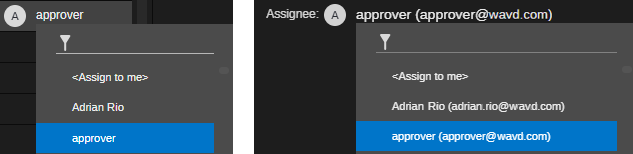
The user selection menu in the Tasks list (left) and Details panel (right).
-
Do one of the following:
-
Select <Assign to me> to assign the task to you.
-
Select a user from the list.
-
Start typing in the filter box to show only entries that match your text, and then select the user from the filtered list.
-
To remove the assignment to a user, hover the mouse pointer over the Assignee field and click the X button that is shown to the right side of the user name.
-
Press the Esc key to cancel the operation without assigning the task to another user.
The task assignment is updated.
-