Using the Notify Command
In the App Menu and context menu of the Search app you might notice a “Commands” menu entry. The Commands menu allows you to trigger "commands". These are automation actions that administrators can also configure for automated execution in the Rules Editor app.
The Command menu is not shown in the context menu of an asset or the App Menu in the following cases:
-
If you select more than one asset.
-
If no asset is selected.
Currently, the Commands menu shows one entry: Notify. Using the Notify command you can define a notification and select the users of your ACC tenant which should receive the notification.
Once you start the Notify command, the configured users will receive the notification, as shown in the following example.

When a user clicks the notification, the default app of the attached asset opens in ACC. For more information, see Viewing Notifications.
To start a Notify command:
-
In the Search app, select the asset for which a notification is to be sent.
-
Do one of the following:
-
Right-click the asset and in the context menu that opens select Commands > Notify.
-
Click the App Menu button and select Commands > Notify.
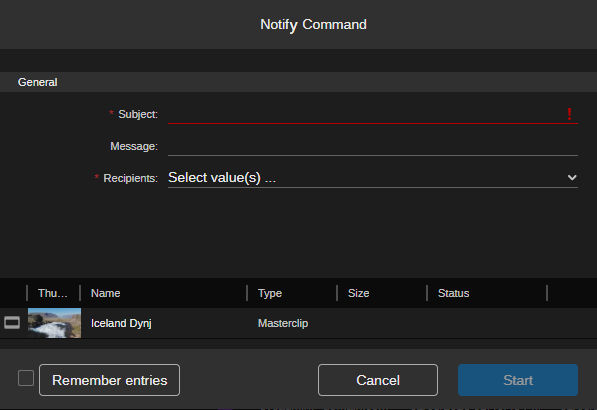
The Notify Command dialog box opens.
-
-
Enter text into the Subject field.
This text appears as the subject (title) of the notification.
-
(optional) Type a message into the Message field.
-
Select one or more users which should receive notifications from the Recipients list.
The Recipients list shows all users that are retrieved for your ACC tenant. Use the filter field to apply a filter to the displayed users.
-
(optional) Save the selected and entered values.
-
Click the Remember Entries button to directly save the entered values.
-
Select the check box to save the values when the Command is started.
The values are saved in your User Settings and persist across sessions. The next time you create a Notify command, the Command dialog box will show the saved values.
-
-
Click the Start button to start the command.
-
(optional) Open the Jobs app and monitor the progress of the Notify job. You can see the following:
-
The name of the job is "Notify command started by <user login name>".
-
If you enable "Display groups", the job is shown under the group "Action: acc-notification-usertriggered".
For more information, see Using the Jobs App.
-