Viewing Image Files
 When an Image asset has been uploaded to ACC, you can load the file into the Image Viewer.
Use case: MediaCentral Asset Management systems might include image assets. Once the integration of Asset Management with ACC is enabled, the HiRes files of the image assets can be uploaded as preview proxies to ACC.
Before you open an image into the Image Viewer for the first time, set the Image Viewer as the default application for images. For more information, see Choosing the App for Opening Assets.
To open an image:
-
Do one of the following to locate an image asset:
-
Use the Search apps to find an image asset.
-
On the Landing page, go to the exploration panel or the My Collections app that shows an image asset.
-
In the Tasks app, open the Details view of a task that has an image asset attached.
-
-
Do one of the following:
-
Double-click the image asset.
This assumes that the Image Viewer is the default app for this asset type.
-
Right-click the image asset, and in the context menu that opens select Open in > Image Viewer.
The image appears in the Image Viewer that opens on the right side of the UI. The Player is hidden, and the Player tabs are shown to the left side of the Image Viewer.
-
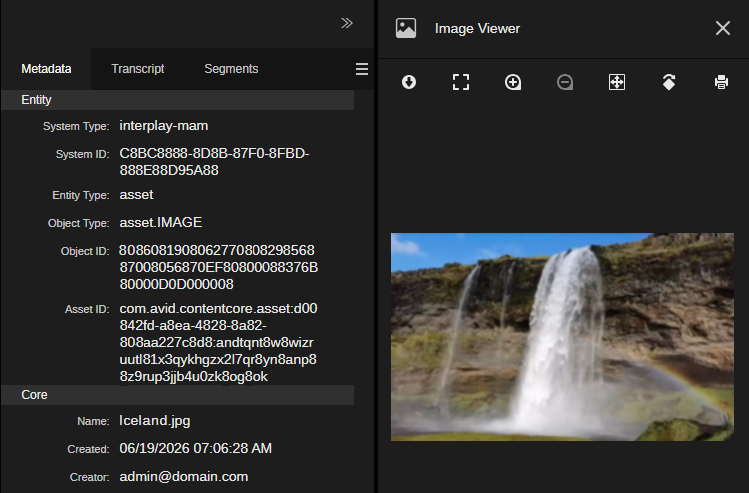
To view an image file in full-screen mode:
-
Load an image asset into the Image Viewer.
-
 Click the Enter Fullscreen button in the upper-right corner of the Image Viewer.
To exit full screen mode:
-
 Click the Exit Fullscreen button in the upper-right corner of the Image Viewer.
-
Press the ESC key on your keyboard.
To zoom in the image:
-
 Use the Zoom In button to zoom in.
-
Click Ctrl +Plus (+) (Win) or Cmd+ (Mac)
-
Double-click in the viewer.
When you double-click a third time, the image is reset to original size.
To zoom out of the image:
-
 Use the Zoom Out button to zoom out.
-
Click Ctrl+Minus (-) (Win) or Cmd- (Mac)
To manually resize the image (horizontally):
-
Click and drag the separator bar to the left of the viewer to the left or right.
The image scales accordingly.
To use Fit to Size:
-
After zooming in to an image, do one of the following:
-
 Click the Fit to Size button.
-
Click Ctrl+0 (Win) or Cmd+0 (Mac)
-
To restore the actual size:
-
Click Ctrl+1 (Win) or Cmd+1 (Mac) to restore the actual size (100%).
To explore the image using pan control:
-
Zoom into the image.
-
Click on the image and drag the image in any direction to pan to a new area.
To rotate the image:
-
 Use the Rotate button to rotate the image clockwise.
-
Click Ctrl+ R (Win) or Cmd+R (Mac)
To print an image:
-
 Click the Print button.
-
Use the settings of your web browser's default Print dialog box to print the image.
To download an image:
-
 Click the Download button.
A Save As dialog box opens. The asset name is used as file name. Invalid characters in the file name are replaced by underscores.
-
Use the Save As dialog box to save the file to your local workstation.