Choosing the App for Opening Assets
Avid Content Core allows you to open and view assets using a variety of methods. While you can often double-click an asset to load it into its default app, ACC also includes an “Open in” menu option that allows you to open the asset in an alternate app, or define the default app for each asset type.
Avid Content Core includes a definition of allowed applications for each asset type. The Open In context menu displays a list of all apps that support the selected asset type and it shows the current default app with a “(Default)” identifier.
When using the Open In feature, note the following:
-
When you use the Open In feature, the app from which you invoked the feature is docked (if applicable) and the asset opens in the selected app in the main area. This action replaces any apps that were previously open (docked or main).
For example if the Search app is open in the main area of the user interface and you choose to open an asset from the search results into the Web Editor, Search is docked and the Web Editor opens in the main area to the right.
-
In addition to your selected app, ACC might load some asset types (such as master clips) into the Player.
-
You can use the Open In feature with only one asset at a time. Multi-selection is not supported.
When defining the default application, note the following:
-
Your default application preferences are stored in your local browser's cache and these settings persist from one session to another. If you clear your browser cache, you must manually reconfigure your default app preferences. As these settings are stored locally, default app preferences do not follow you across multiple workstations.
-
If you configure the Web Editor as the default app for master clips, ACC opens the Web Editor and prompts you to select or create a project/sequence. In this case, the asset is added to the Project Bin of the selected project.
The following processes describe how to use the Open In feature and define the default application.
To open an asset using the Open in menu:
-
Right-click an asset to display the context menu and hover your cursor over the Open In option.
-
Select the app in which you want to open the selected asset.
The following illustration shows the Open In menu for a sequence. In this case, the user has already assigned the Web Editor as the default app for this asset type.
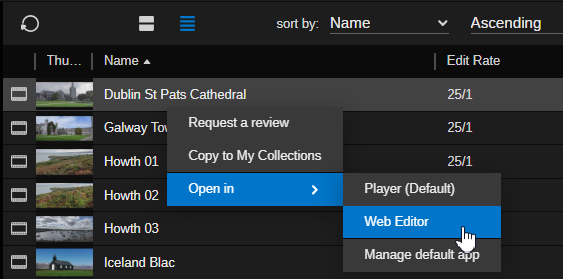
Illustration provided as an example only. The contents of the context menu can change over time.
To define the default app:
-
Right-click an asset and select Manage Default App from the Open In context menu.
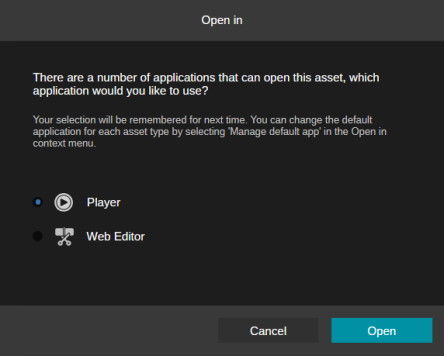
The system displays a window with a list of apps that support this asset type. You should note that the name of the window might be displayed as either "Open In" or "Manage Default Application". The following illustration shows the Open In dialog box for a Production Management asset that is using the Player as the default app.
-
Click the button to the left of the app icon to select this app as default.
-
Click either Open or Save (depending on the window).
Double-clicking an asset of the selected type will now open the asset in the associated default app.