Viewing Documents
 When the PDF proxy of a document has been uploaded to ACC, you can load the file into the PDF Viewer for review.
Use case: MediaCentral Asset Management systems might include document assets. When a document is imported into the Asset Management database, the Asset Management processes create a proxy version of the file. This proxy is always created as a PDF — even if the document is not a PDF originally. Once the integration of Asset Management with ACC is enabled, PDF documents can be uploaded to ACC.
Before you open a PDF into the PDF Viewer for the first time, set the PDF Viewer as the default application for documents. For more information, see Choosing the App for Opening Assets.
To open a document:
-
Do one of the following to locate a document asset:
-
Use the Search app to find a document asset.
-
On the Landing Page, use any exploration panel or the My Collections app that shows a document asset.
-
In the Tasks app, open the Details view of a task that has a document asset attached.
-
-
Do one of the following:
-
Double-click the document asset.
This assumes that the PDF Viewer is the default app for this asset type.
-
Right-click the document asset, and in the context menu that opens select Open in > PDF Viewer.
The document appears in the PDF Viewer that opens on the right side of the UI. The Player is hidden, and the Player tabs are shown to the left side of the PDF Viewer.
-
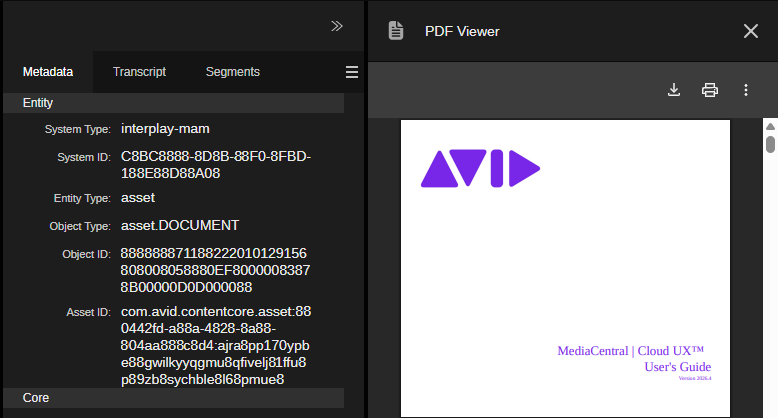
n If the document does not open in the PDF Viewer, check the "PDF Documents" setting in your Chrome browser and verify that it is configured to "Open PDFs in Chrome" and not "Download PDFs".
To show additional controls:
-
Right-click on the PDF open in the PDF Viewer.
-
Click the More Options (three dots) menu.
-
Enlarge the PDF Viewer width.

n These controls and options are not tested by Avid as they are functions of your web browser and not features specifically implemented by ACC.
To navigate the document:
-
Use default controls to navigate the document.
-
Use the scroll bar on the right side of the Media Viewer or use your mouse’s wheel button to navigate up and down in the document.
-
Press Ctrl+Home or Ctrl+End to go to the first or last page of the document.
-
Press the Page Up or Page Down key to navigate page-by-page.
-
Press the Up Arrow or Down Arrow key to navigate line-by-line.
-
To download a document:
-
Click the Download button.
A Save As dialog box opens.
-
Use the Save As dialofg box to save the file to your local workstation.