Using Attachments
Depending on the task type, a task can have one or more attachments or no attachments at all, or needs to have exactly one attachment. The task type also determines if the attachments can be deleted.
-
Review and Approval task: One asset is automatically attached to the task upon task creation. You cannot delete the attachment from the task and cannot add additional attachments to the task. You can load the attached asset into its default application.
-
Regular task: Attaching assets to a task is optional, except for regular tasks that you create from within the Search app. See Creating Regular Tasks.
You can add a maximum of 20 attachments to the task. You can delete attachments from the task. You can load any of the attached assets into its default application.
Note the following when adding assets to a Regular task:
-
You can add master clips, sequences and any Asset Management asset to a task but not more than 20 assets.
-
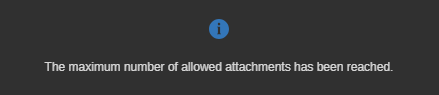
If you drop more than 20 assets to a task, a "limit exceeded" message appears. Only 20 assets will be attached.
-
If your selection includes an asset that is already used as attachment in the task, the asset will be silently ignored and not added a second time to the task.
(Regular tasks) To add attachments to a task:
-
Open the task in the Details panel.
-
Dock the Tasks app.
-
Locate the asset(s) to be attached to the task. You have the following options:
-
Open the My Collections window, select an asset or Shift+click or Ctrl+click multiple assets to select them.
-
Open the Search app, conduct a search and select the asset(s) you want to attach in the Search Results area.
-
-
Drag and drop your selection to the Attachments area of the task. If no attachments have been added yet, the area shows a "Drop items here" text.
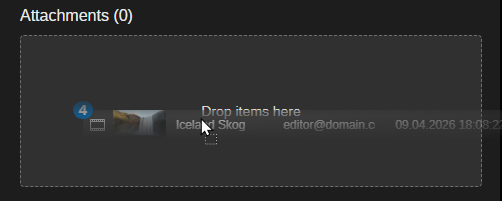
The assets are added as task attachments. Each attachment is shown as a separate asset card.
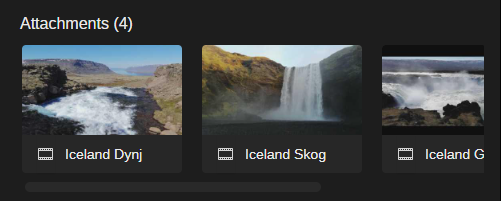
To open an attachment in its default application:
-
Open the task in the Details panel.
-
Double-click the attachment.
The asset opens in the configured default application.
(Regular tasks) To delete an attachment:
-
Open the task in the Details panel.
-
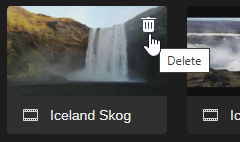
Hover the cursor over the attachment to be deleted.
-
 Click the Trash icon that is shown on the right side of the attachment card.
The attachment is deleted without additional user prompt.