Showing the Task Activity
The Tasks app allows you to monitor the activity (change history) of the task open in the Details panel.
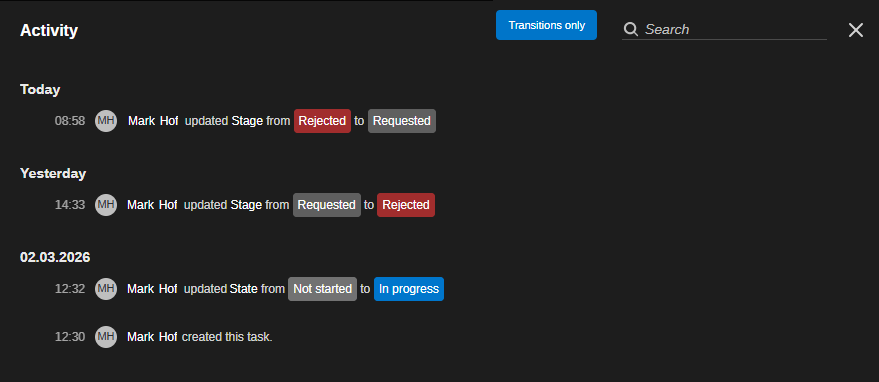
Activities are sorted by time (newest on top) arranged under the date headers Today, Yesterday, <change date before yesterday>. For each activity, the following information is shown:
-
Time when the change was applied.
-
Name of the user who applied the change.
-
Applied change (for example: Updated state from In progress to Completed).
A toggle button lets you show all changes or only Transition changes (state and stage changes). Transitions only is toggled on by default.
A Search filtering control lets you display only activities that include the provided search term in the change history. Note the following:
-
While you type, a "contains" search is applied; you do not need to type the entire term.
-
You can combine search terms or parts of search terms. Example: "req app" would filter for any activity where the task stage was changed from Requested to Approved.
-
Searching for a date is supported. Mind entering the correct separator depending on the applied date style (for example, 3/2/2026 vs. 02.03.2026)
-
You can search for the string "today" or "yesterday" but you cannot search for the date of today or yesterday.
To show the activity of a task:
-
Open the Detail panel of the task.
-
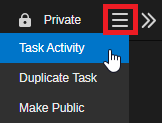
In the Details panel header, click the Menu button and select Task Activity.
The Activity window opens. Transitions only is enabled by default so that only stage and state changes of the task are shown.
-
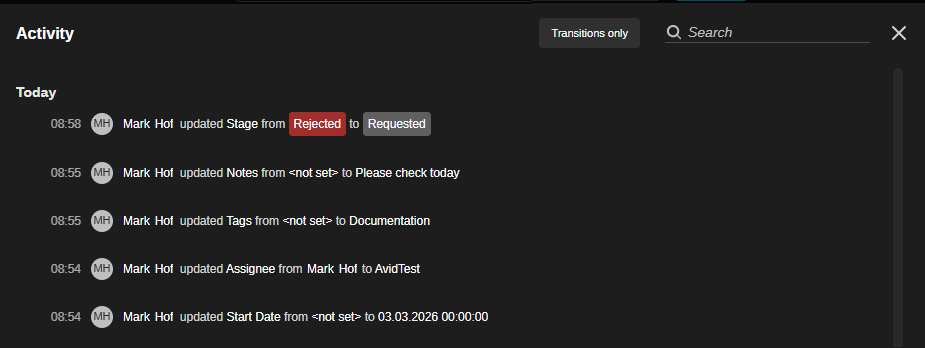
To show all changes applied to the task, click the Transitions only toggle button so it turns gray.
-
(optional) Click in the "Search" field and type the term or date you want to search for.
While you type, a "contains" search is applied. Only task activities that include your search term(s) are shown in the Activity window.
To remove the filter, click the X button that is shown to the right side of the Search field.
-
 Click the X (Close) button to close the Activity window.