Understanding Search Types
When you add a term to the header, the Search app associates the entry with a search type that partially determines how your search is executed. Metadata is the default search type for every new search term, but multiple other search types exist — each with their own icon. In the following example illustration, the user has initiated a new date-baesd search (as identified by the Date icon).

The following table describes the different Search Type options.
|
Name & Icon |
Description |
|
Dates
|
Searches for metadata types such as Date Created or Date Modified. In some cases the Dates category might be limited to a date value only, while in other cases you might be prompted to enter both date and time values. When selecting a search type that requires you to enter a date or a date range, the app displays a calendar that you can use to select your values. For more information, see Working with Date Fields. |
|
Simple (AI)
|
This pill provides equivalent functionality to the simple natural language search. It is included in this list so that you can combine this search type with other pill types. |
|
Markers and Segments
|
Also known as Time-Based Metadata (TBMD), this pill type includes the following options:
Some options in this category provide you with the opportunity to enter multiple values. If for example you select the Reviews search type, you are presented with menu that allows you to search for text within three different data fields.
If you enter 2 or more values in a Markers and Segments pill, you are essentially creating a compound search. Values that are included in the pill must be found in the same marker, segment, or layer. For example, consider a Review that includes comments from two different authors and the phrase "Avid". If you search for Author 1 and Avid, the search would return a hit only if Author 1 used the term "Avid". It would not return a hit if Author 2 typed "Avid". |
|
Metadata
|
This is the default selection for each new search term. Searches for text-based metadata. This includes both statically assigned values such as format and resolution, as well as user-defined values such as asset names. This search type does not return time-based metadata such as information included in marker data. |




To change the search type:
-
Click on the search type icon on the left side of any search term.
As shown in the following illustration, the Search Type menu appears below the term with possible options.
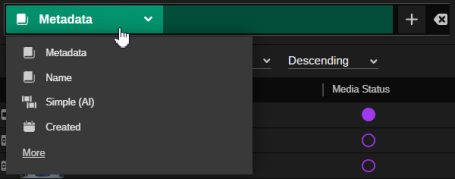
-
Select a new search type from the menu.
The term is updated to reflect the change, as indicated by the search type icon and name.
For more information, see Reviewing the Search Type Menu.