Searching with Multiple Terms (Multiple Pills)
When you add more than one term to the Search header, an & (and) boolean operator appears between each term. This operator provides a visual representation of the relationship between the search terms.
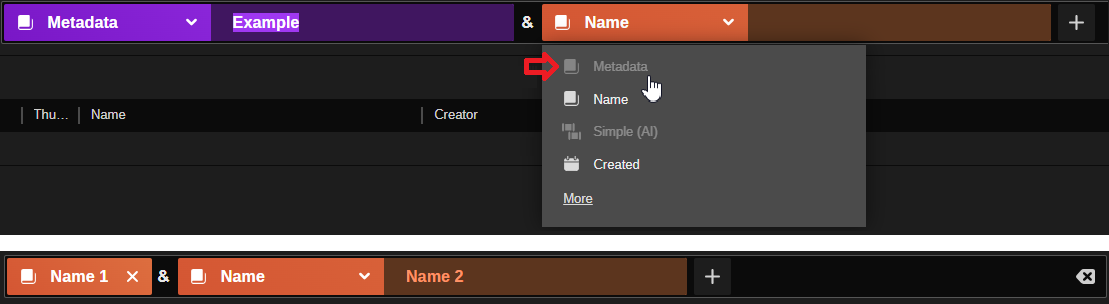
Whenever you add two or more terms using the same search type, the search bar displays the same color for each pill. For example two Metadata:Name terms might both be colored orange, but a Date term would be displayed using a different color. This color-coding system can help you more easily identify multiple search terms of the same type.
While you can add multiple pills of the same type, you cannot combine the primary Metadata pill and a Markers and Segments pill in the same search. You also cannot add two primary Metadata pills. After you add either of these pills types, some menu options are disabled to prevent you from creating an invalid search. You can however add two secondary Metadata pill types to the same search.
The first illustration below shows that the Metadata menu option is disabled after the user added the first Metadata term, and the second illustration shows the successful addition of two Metadata:Name pills.
n If you add an empty term (a term associated with no value), the term is ignored when you execute your search.
To search for multiple phrases:
-
After you add the first search term, create a second term by doing one of the following:
-
 Click the Add button (the + symbol in the Search header).
 -
Add a new term by pressing the Tab key.
-
-
Configure the required values for your new term.
-
Click the Search button in the Search header or press Enter on the keyboard.
The search is executed and the Results area is populated with all matching assets.