Using the Category Other
The rule type Other shows rules uploaded to the Rules Engine that are unknown for the Rules Editor but can be executed by the Rules Engine; for example, rules that have been created via the API.
n This rule type is usually empty. Rules that are unknown to the Rules Editor are exceptions. However, if existing, the Rules Editor makes these rules visible.
UI for Rules in the Category Other
When you select the rule type Other, the Rules Editor app shows a simplified UI.
-
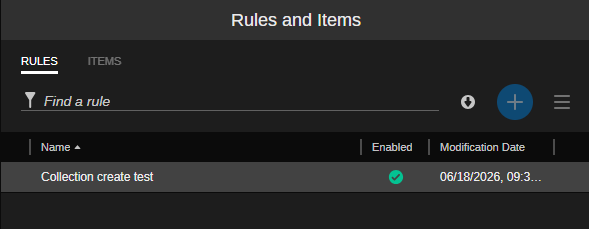
Rules and Items panel:
-
RULES tab: Shows a simplified table with less columns (Name, Enabled, Modification Date); the features Create a rule and Import default rules are disabled.
-
ITEMS tab: Is disabled
-
-
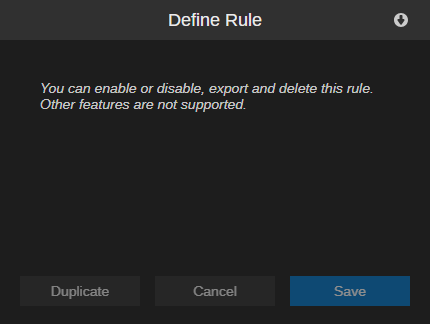
Define Rule panel:
-
Does not show the items of the rule.
-
The Export rule button is enabled when you select a rule in the Rules and Items panel.
-
The Save and Cancel buttons will be enabled after the "Enable" status of the rule has changed.
-
The Duplicate button is disabled.
-
-
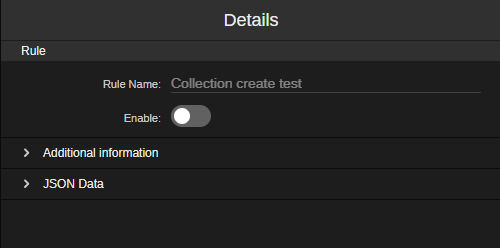
Details panel:
-
Shows the general section that lets you change the Enable status of the rule.
-
Shows a specific, read-only section JSON Data.
-
Options for Rules in the Category Other
You have the following options for a rule of type "Other":
-
Enable/disable the rule
-
Export rule(s)
-
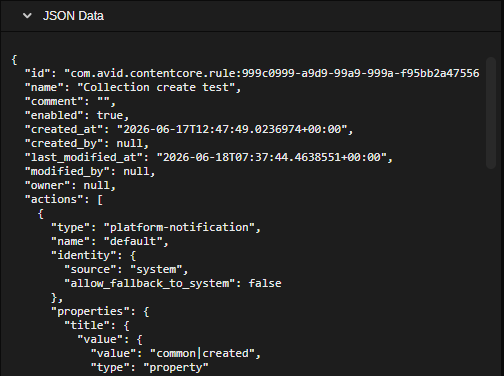
Display the rule's JSON in the Details panel
-
Delete rule(s)
To change the Enable status of a rule:
-
In the Rule Type panel, select Other.
-
In the Rules and Items panel, select a rule.
-
 In the Details panel, do one of the following:
-
To enable a disabled rule, click the gray Enable toggle so it turns blue.
-
To disable an enabled rule, click the blue Enable toggle so it turns gray.
-
-
In the Define Rule panel, click the Save button.
To export rules:
-
To export an individual rule, do one of the following:
-
In the Rules and Items panel, right-click a rule and select Export from the context-menu.
-
 Load a rule in the Define Rule panel and click the Export rule button on the Define Rule panel header.
The file is saved in JSON format. The file name is "<rule name>.json".
-
-
To export several rules at the same time, do the following:
-
In the Rules and Items panel, do one of the following:
-
Use Ctrl+click to select several non-consecutive rules in the table.
-
Use Shift+click to select several consecutive rules in the table.
-
Select a rule and use Shift+ Arrow Up or Arrow Down key to select several consecutive rules in the table.
-
-
Right-click the selection and select Export in the context-menu that is shown.
The selected rules are downloaded as a Zip archive.
-
-
To export all rules, do the following:
-
In the Rules and Items panel, click the Export all rules button.
All rules are downloaded as a Zip archive.
-
To show the JSON data of a rule:
-
In the Rule Type panel, select Other.
-
In the Rules and Items panel, select a rule.
-
In the Details panel, click the Expand toggle button in front of the JSON Data section.
To delete rules:
-
To delete an individual rule, do the following:
-
 In the Rules and Items panel, hover the cursor over the rule to be deleted and click the Trash icon that is shown.
 -
Click Delete in the Delete Rule security prompt.
-
-
To delete several rules at the same time, do the following:
-
Do one of the following:
-
Use Ctrl+click to select several non-consecutive rules in the table.
-
Use Shift+click to select several consecutive rules in the table.
-
Select a rule and use Shift+ Arrow Up or Arrow Down key to select several consecutive rules in the table.
-
-
Right-click the selection and select Delete in the context-menu that is shown.
-
Click Delete in the Delete Rule security prompt.
-