Exporting Rules
The Rules Editor app provides options to export rules. You can export the following:
-
An individual rule selected in the Rules and Items panel or the rule that is currently being loaded into the Define Rule and Details panels.
The export creates a single JSON file. -
Several rules selected in the Rules and Items panel.
The export creates a Zip file containing the selected rules as a separate JSON file. -
All rules.
The export creates a Zip file containing each rule of the system selected in the sidebar as a separate JSON file.
Depending on your web browser's settings the following happens during the export operation:
-
The rules are directly downloaded to the download location specified in your web browser’s settings.
-
The Save As dialog box opens that lets you save the files to a selected directory.
n The Export feature is only activated for rules that have no unsaved changes.
To export an individual rule:
-
Open the Rules and Items panel and make sure that no rule has unsaved changes.
-
Do one of the following:
-
In the rules table, right-click a rule and select Export from the context-menu.
-
Double-click a rule in the rules table to open it in the Define Rule panel and click the Export rule button on the Define Rule panel header.

The file is saved in JSON format. The file name is "rules-<time stamp>.json".
-
To export several rules at the same time:
-
Open the Rules and Items panel and make sure that no rule has unsaved changes.
-
In the rules table, do one of the following:
-
Use Ctrl+click to select several non-consecutive rules in the table.
-
Use Shift+click to select several consecutive rules in the table.
-
Select a rule and use Shift+ Arrow Up or Arrow Down key to select several consecutive rules in the table.
-
-
Right-click the selection and select Export in the context-menu that is shown.
The selected rules are downloaded as a Zip archive. The file name is "rules-<time stamp>.zip". Each exported rule is included as a separate *.json file in the Zip archive. For the rules in the Zip archive, the rule name, as set in Rules Editor, is used as file name. Invalid characters are replaced with underscores in the file name.
To export all rules:
-
Open the Rules and Items panel and make sure that no rule has unsaved changes.
The Export rule button is activated.
-
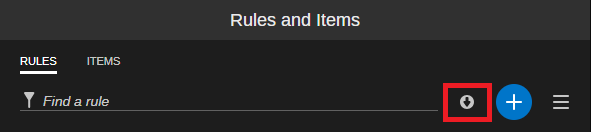
 In the Rules and Items panel, click the Export all rules button.
All rules are downloaded as a Zip archive. The file name is "rules-<time stamp>.zip". Each exported rule is included as a separate *.json file in the Zip archive. For the rules in the Zip archive, the rule name, as set in Rules Editor, is used as file name. Invalid characters are replaced with underscores in the file name.