Deleting Rules
The Rule Editor app allows you to delete rules at any time. Note that there is no undo for the delete operation. Consider disabling the rule instead of finally deleting it.
To delete an individual rule:
-
In the Rules and Items panel, open the RULES tab.
-
In the rules table, do one of the following:
-
 Hover the cursor over the rule to be deleted and click the Trash icon that is shown.
 -
Right-click the rule to be deleted and select Delete in the context-menu that is shown.
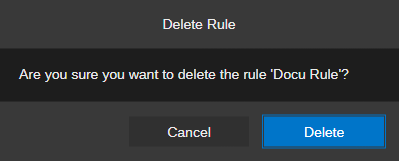
A Delete Rule security prompt opens.
-
-
Do one of the following:
-
Click the Delete button to permanently delete the rule.
The rule is removed from the RULES tab table. The Define Rule and Details panels are reset to initial state.
-
Click the Cancel button or press the Esc key to exit the deletion process.
-
To delete several rules at the same time:
-
In the Rules and Items panel, open the RULES tab.
-
In the rules table, do one of the following:
-
Use Ctrl+click to select several non-consecutive rules in the table.
-
Use Shift+click to select several consecutive rules in the table.
-
Select a rule and use Shift+ Arrow Up or Arrow Down key to select several consecutive rules in the table.
-
-
Right-click the selection and select Delete in the context-menu that is shown.
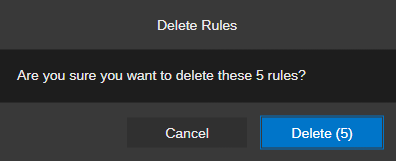
A Delete Rules security prompt opens.
-
Do one of the following:
-
Click the Delete button to permanently delete the rules.
The rules are removed from the RULES tab table.
-
Click the Cancel button or press the Esc key to exit the deletion process.
-