Using the Transcript Tab
The Transcript tab shows audio transcripts of proxy media uploaded to Avid Content Core that has been analyzed by Google services. In this version, transcripts for Avid Production Management and MediaCentral Production Management master clips can be shown; other asset types are not supported.
n The Transcript tab shows segment data created through Avid Content Core. This does not include transcript information from on-prem MediaCentral Cloud UX systems, or transcripts created through the Web Editor app.
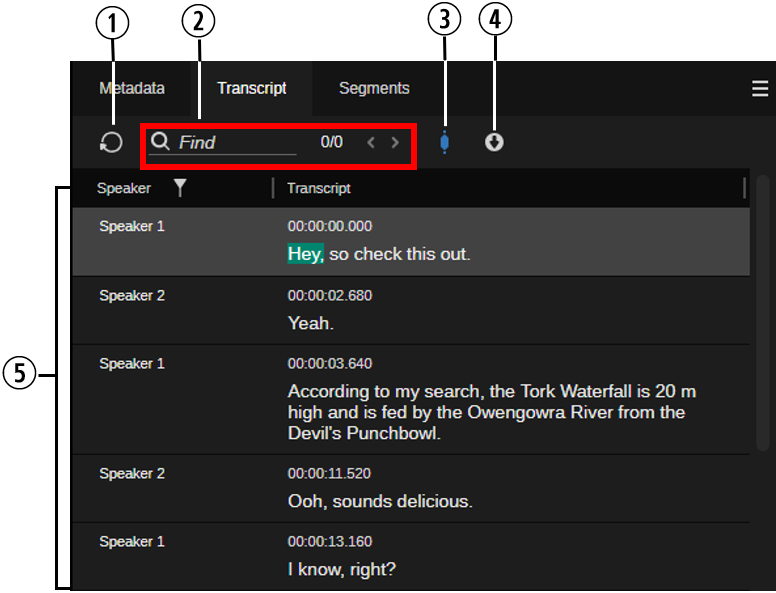
The following illustration and table describe the layout of the Transcript tab.
|
|
Item |
Description |
|---|---|---|
|
1 |
Reload button |
Reloads the transcript. |
|
2 |
Find control |
Lets you search words in the transcript. The word count to the right side of the Find field shows the number of matching words in the form <selected word>/<total number of found words>. Using the navigation controls to the right side of the word count you can skip between found words. If Sync Playhead is enabled, skipping between found words also moves the playhead in the Player timeline. For more information, see Searching in the Transcript. |
|
3 |
Sync Playhead button |
Toggles the synchronization of the position indicator (playhead) and transcript on and off:
For more information, see Navigating within the Transcript. |
|
4 |
Export Transcript |
Lets you export the transcript to your local workstation. Supported file formats are *.txt, *.csv and *srt. For more information, see Exporting a Transcript. |
|
5 |
Transcript area |
The contents of the transcript is shown in a table. Each row consists of the following:
|
Accessing the Transcript of an Asset
Accessing a transcript is a pretty basic operation, as described in the following procedure.
To access the transcript of an asset:
-
Use the Landing page or Search app to load a master clip into the Player.
-
Click the Player’s Transcript tab.
The Transcript tab opens and shows the transcript of the asset.
If the asset does not have a transcript, the tab shows a "We couldn't find what you're looking for - There is no transcript for this asset" message.
If you have not loaded an asset, the Segments tab shows an “Asset is not selected - Select an asset to view segments” message.
Navigating within the Transcript
When you play back a master clip in the Player or position the playhead in the Player's position indicator panel, text in the transcript will closely follow the spoken word in the clip.
Note the following when navigating the transcript:
-
If the Sync Playhead toggle button is selected (blue button, default) during playback in the Player or when you position the position indicator in the position indicator panel, the corresponding word is highlighted in green in the Transcript area.
Vice versa, when you select a section in the Transcript area, the position indicator in the position indicator panel is positioned to the corresponding timecode.
-
If the Sync Playhead toggle button is deselected (gray) during playback in the Player, corresponding words are not highlighted in the Transcript area. Selecting a word in the Transcript area does not move the position indicator in the position indicator panel.
To navigate with enabled synchronization:
-
 (if inactive) Activate the Sync Playhead button.
 -
Start playback or move the position indicator in the position indicator.
-
The currently spoken word is highlighted in green in the Transcript area, its segment is highlighted in gray. While playback continues, position indicator and highlighting update in tandem, the Transcript area scrolls down the list of transcript segments.
-
When the position is between two words, the left word in the Transcript tab is highlighted.
-
When two words share the same timecode, both words are highlighted in green in the Transcript tab.
-
When the position is between two segments (gap), the left segment is highlighted in the Transcript tab.
-
-
Click on a segment in the Transcript tab.
The first word is highlighted in green, its segment is highlighted in gray and the position indicator is moved to the corresponding timecode in the position indicator panel.
-
Click on a word in the Transcript tab.
The word is highlighted in green, its segment is highlighted in gray and the position indicator is moved to the corresponding timecode in the position indicator panel.
To navigate with disabled synchronization:
-
 Deactivate the Sync Playhead button so it turns gray.
 -
Start playback or move the position indicator in the position indicator panel.
Neither words nor segments are highlighted in the Transcript area.
-
Click on a segment or word in the Transcript area.
Neither the video in the Player nor the position indicator in the position indicator panel are updated.
Searching in the Transcript
If a transcript includes a large number of segments, use the Find field to search for words in the transcript segments. Using the Find field navigation controls you can skip through the found words; if Sync Playhead is enabled, skipping through the found words also moves the position indicator.
Note the following:
-
Search is only applied to the text in the Transcript column. To filter the transcript segments by speakers, use the Speaker filter.
-
The Find feature interacts with the Speaker filter:
-
If you already applied a Speaker filter, search is run in the Transcript column of the filtered segments.
-
If you already used the Find field to search for words in the Transcript column, the search term, word count and word highlighting are cleared when you apply a Speaker filter.
-
To search in the transcript:
-
Click in the "Find" field and type the word you want for search for.

Since a "contains" search will be applied you do not need to type the entire word. Searching for multiple words is not supported.
-
Press Enter.
The word count to the right side of the Find field shows the number of matching words in the form <selected word>/<total number of found words>.

All words in the transcript that contain your search term are highlighted in blue. The transcript scrolls down to the segment with the first matching word, and selects the word.
-
If Sync Playhead is enabled, the word is highlighted and the segment is selected. In this case, also the position indicator is moved to the corresponding position in the position indicator panel.
-
If Sync Playhead is disabled, the word in still highlighted in blue. In this case, the position indicator is not moved in the position indicator panel.
-
-
 Navigate through the matching words in the transcript by clicking the Previous or Next button.
For the first hit, the Previous button is disabled; when you reach the last hit, the Next button is disabled.
-
To remove the search term and word highlighting, click the X button in the Find field.
Filtering Speakers
If a transcript includes a large number of segments, you can use the Speaker filtering control to display a subset of the list. Only the segments of the speaker(s) you select will be shown, all segments of other speakers will be hidden.
-
When you already used the Find field to search for words in the Transcript, the search term, word count and word highlighting are cleared when you apply a Speaker filter.
-
Any selection in the Transcript area is cleared when you apply a Speaker filter.
To filter Speakers in the transcript:
-
 Click the gray Filter button in the Speaker column head.
 -
In the filter tool that opens, select the check box of the speaker(s) you want to use.
You can use the Find a speaker field to search for speakers within the filter tool.
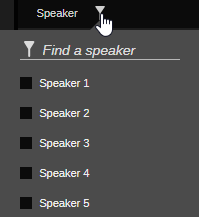
As soon as you select a speaker, the filter is applied. The Filter button turns blue to indicate an active filter.
-
Click outside the filter tool to close it.
Only the segments of the selected speaker(s) are shown in the Transcript area.
To turn off filtering:
-
Click the Reload button.
-
Disable the filter manually:
-
 Click the blue Filter button in the Speaker column head.
 -
In the filter tool that opens, deselect all selected check boxes.
-
Click outside the filter tool.
All segments of all speakers are shown again in the Transcript area.
-
Exporting a Transcript
The Transcript tab lets you export a transcript to your local workstation. The exported file contains each segment of each speaker including the time-stamp information (as HH:MM:SS.mmm).
To export a transcript:
-
 Click the Export Transcript button in the Transcript tab toolbar.
 -
Select the file format from the menu. TXT, CSV and SRT are supported.
An <asset name>_transcript.txt, <asset name>_transcript.csv or <asset name>_transcript.srt file is saved to the download location specified in your web browser’s settings.
n Depending on your browser settings, you might be prompted for a download location.
Copying Transcript Text to the Clipboard
You can copy the text of transcript segments to the system clipboard and paste them into another application. Note that copied segments do not include the speaker name and time-stamp information.
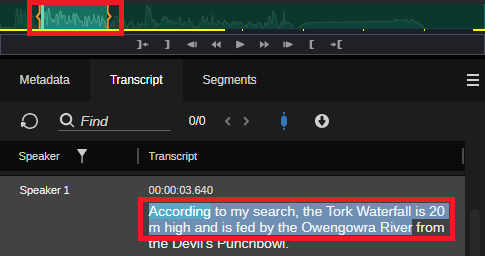
If you highlight words within a segment or accross segments by using the mouse pointer, the In and Out mark for the highlighted section are set on the Player's position indicator panel, as shown in the following example.
To copy the text within a segment to the clipboard:
-
Highlight words by using the mouse pointer.
-
Do one of the following:
-
Right-click the selection and in the context-menu that opens select Copy Text.
-
Press Ctrl+C.
-
To copy the text of an individual segment to the clipboard:
-
Right-click the segment and in the context-menu that opens select Copy Text.
-
Click on the segment and press Ctrl+C.
To copy the text of several entire segments to the clipboard:
-
Select a segment, then press Shift+click to select a range or Ctrl+click to select individual segments.
-
Do one of the following:
-
Right-click the selection and in the context-menu that opens select Copy Text.
-
Press Ctrl+C.
-
To copy text across segments to the clipboard:
-
Click in a segment and move the pressed-down mouse pointer up or down to select text across segments.
-
Do one of the following:
-
Right-click the selection and in the context-menu that opens select Copy Text.
-
Press Ctrl+C.
-