Using the Metadata Tab
The Metadata tab lets you view properties of the Content Core namespace that are associated with the asset opened in the Player.
The following illustration shows the Metadata tab for a masterclip.
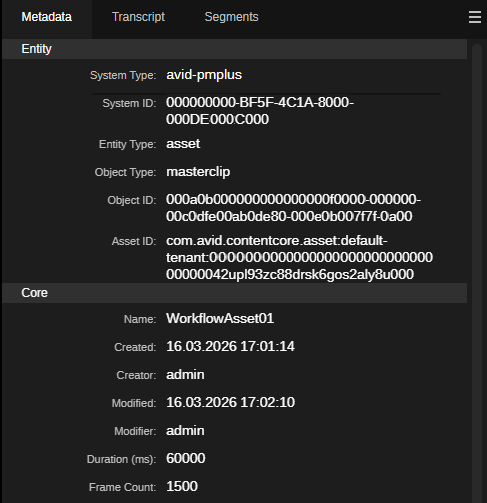
Metadata is arranged in two sections: Entity and Core.
|
Section |
Description |
|
Entity |
In the Entity section, the following properties are shown:
|
|
Core |
In the Core section, the following properties are shown for all asset types:
Additional properties of the Content Core namespace are shown depending on the asset type. |
To open an asset in the Metadata tab:
-
On the Landing page, double-click an asset, then click the Player's Metadata tab.
This assumes that the Player is the default app for this asset type.
-
Double-click an asset in the Search app and click the Player’s Metadata tab.
This assumes that the Player is the default app for this asset type.
-
Right-click an asset in the Search app, and in the context menu that opens select Open in > Player and then click the Player’s Metadata tab.
If you have not loaded an asset in the Player, the Metadata tab shows an “Asset is not selected - Select an asset to view metadata” message.