Three Point Editing
Three point editing is a common non-linear editing workflow that requires you to mark a total of three points between your source (asset) and your destination (sequence). The ability to add mark points to the sequence optimizes the editing process and allows for greater flexibility when adding assets to your sequence.
The following table describes the different variations in which the three points can be used.
|
Source Monitor |
Record Monitor |
Description |
|
Mark In / Mark Out |
Mark In |
The marked section of the source asset is added to the sequence starting at the Mark In point added to the Record Monitor (sequence). |
|
Mark In / Mark Out |
Mark Out |
The marked section of the source asset is added to the sequence ending at the Mark Out point added to the Record Monitor (sequence). |
|
Mark In |
Mark In / Mark Out |
The marked section of the sequence is replaced by the asset, starting at the asset’s Mark In point. |
|
Mark Out |
Mark In / Mark Out |
The marked section of the sequence is replaced by the asset, ending at the asset’s Mark Out point. |
When you add In or Out points to your sequence, the marks appear in both the Record monitor and the Sequence Timeline. You can enter a Mark In or Mark Out point anywhere on your sequence and use the mark point as if it were the blue position indicator bar or a natural edit point.
The following illustration shows the Mark In and Out points as they appear in the Sequence Timeline. Notice that a portion of the segment is shaded to identify the marked area.
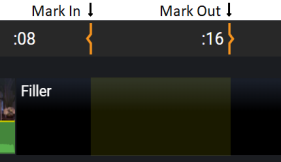
If you complete an Overwrite edit, the mark point on the sequence is used instead of the position indicator. If you remove the marks, the edit is completed using the position indicator as the mark in.
If you remove a Mark In point from either the Source or Record Monitors, the mark is removed from the timeline. However, future edits treat the asset as if the Mark In point is included on the first frame of the asset. Similarly if you remove a Mark Out point, the final frame of the asset is used as the new Mark Out point.
To edit using three points:
-
Load an asset into the Source monitor and either load an existing sequence or create a new sequence.
-
Use the table above to mark three points in the Source monitor and the Record monitor.
When you add marks to the Record monitor, matching mark points are added to the Sequence Timeline.
-
Click the Overwrite button to make the edit.
n This workflow applies to Overwrite edits only. Insert and Connect on Top edits do not apply.
If there is not enough material to complete the edit, the marked space is filled with as much source material as is available.