Using the ACC Control Panel
Following your purchase of Avid Content Core, you should receive an email that includes a URL and the credentials required to sign into the ACC Control Panel. You must use this tool to configure the following:
-
The Identity Provider settings that you will use to connect your enterprise authentication system (such as Okta or Microsoft Entra) to Avid Content Core.
This process allows all Avid Content Core users to use the same credentials for both Avid Content Core and their local workstations.
-
The mapping of your Identity Provider groups to Avid Content Core roles.
This process allows you to define which user groups have access to certain functions, features, and administrative-only areas of Avid Content Core.
The following example illustration shows the Admin portal with an OIDC configured identity provider.
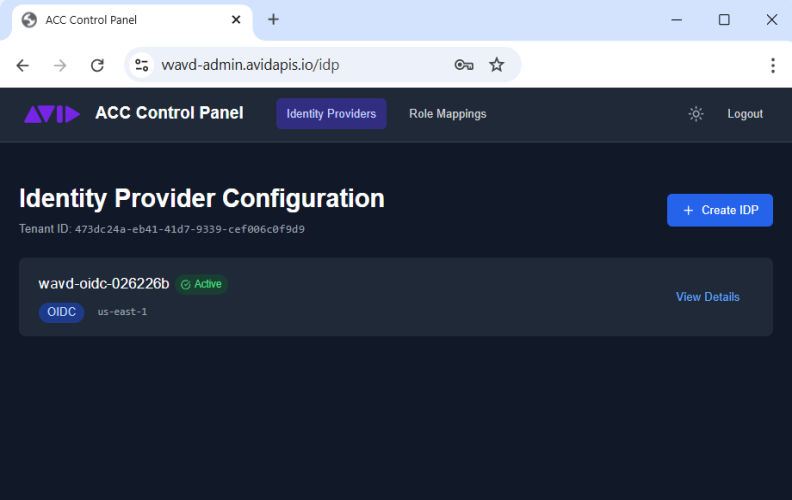
The portal is divided into two tabs: Identity Providers and Role Mappings
Avid supports the ability to configure more than one IDP against a single Avid Content Core system, if your organization requires it. However if you have individual users that belong to multiple IDPs, Avid highly recommends that users connect to ACC using a single IDP option consistently.
To connect to the ACC Control Panel:
-
Find the message from Avid in your email's inbox.
The email should be from no.reply@avid.com and have a subject header of: "Your Avid Content Core tenant is ready — next steps"
-
Click the Admin portal link in the email to open a web browser and access the ACC Control Panel.
-
At the welcome page, enter the credentials provided in the email.
The temporary access password expires automatically after 7 days of issue. If your password has expired, contact Avid Sales to request a new one.
-
At your first login, the system asks you to update your password. Enter and confirm a new password and sign in.
The Admin Portal appears.
n After you configure your IDP and you successfully log in to the ACC Control Panel with your SSO credentials, the temporary credentials sent via email become disabled and no longer usable.
To disconnect from the ACC Control Panel:
-
Click the Logout button in the upper-right corner of the user interface.
Using Light and Dark Modes
The portal allows you to display the user interface in either a light or dark mode.
To change modes:
-
Click the "moon" button to left of the Logout button to switch to light mode. -
Click the "sun" button to left of the Logout button to switch to light mode.
Configuring an Identity Provider
The first step in configuring your Avid Content Core system is to link your organization’s enterprise identity provider to ACC. This enables you to not only sign into Avid Content Core using your organization's standard user credentials, but also allows you — as an administrator — to determine which groups are associated with specific user roles.
The ACC Control Panel allows you to configure two types on identity providers:
-
OpenID Connect (OIDC)
-
SAML (Security Assertion Markup Language)
Prerequisites / notes:
-
Avid expects that you can employ any authentication provider, as long as it provides support for both OAuth 2.0 (OIDC or SAML compliant), and Group Claims.
n Avid does not qualify, nor prefer any specific IDP vendor, and cannot advise on the settings that might be required for each vendor.
-
Prior to configuring the ACC IDP settings, you must create an app within your OpenID provider for Avid Content Core.
Refer to the following processes to configure the settings that are appropriate for your organization.
To configure an OIDC-based identity provider:
-
Click the Create IDP button on the Identity Provider section of the portal.
The identity provider configuration wizard appears.
-
Enter a Display name for this IDP configuration setting.
This name is displayed on the Avid Content Core welcome screen for all users.
-
Click the OIDC button to select this IDP type.
-
Enter an optional description of this provider into the Description field. This information appears only within the ACC Control Panel.
-
Enter the following information into the portal:
-
Configure all fields in the OIDC Configuration section of the page.
Each text box includes sample text that provides you with example formatting.
You can obtain the Client ID and the Client Secret from the app that you created within your identity provider.
The remaining fields are somewhat standard for most OIDC deployments. While authentication provider administrators are already likely familiar with these fields, you might be able to access these settings through a URL. The following URL and illustration provide an example for Okta:
https://<your organization's name>.okta.com/.well-known/openid-configuration
You can find the scope names through that same URL (if available) under the "scopes_supported" section. In most cases, you should configure openid, email, and, profile, and groups. However, there are some exceptions. For example you do not need to configure groups if connecting to Microsoft Entra. The names that you enter here must match the names of the scopes from your IDP provider. If the names do not match, certain features (like role mapping) will result in an error.
-
Configure the Attribute Mapping options.
While some providers might use the same attribute names as the default values provided by Avid, others might have different names for the same value. In these cases, you can map the default Cognito value (left column) to your IDP app's custom value (right column).
Some IDP apps might not include one or more default values (such as name). In this case you must create the attributes in your IDP app, and then ensure the names are correctly mapped in the ACC Control Panel.
Avid Content Core requires you to have correct mapping for both email and name (at minimum). You can use the Add Mapping button to include additional values if desired. However, these values might not be used by Avid Content Core.
-
You can find the Group Claim Name in your IDP app.
This value is likely already named "groups", which means that you should not need to alter this field. If your IDP app uses an alternate claim filter (name), enter that value both here and in the Scopes field above.
n In the case of Microsoft Entra, the Group Claim Name is entered as a GUID that relates to the GroupID claim name.
-
-
Click the Create IDP button to save your settings.
The site displays the OIDC Client Details window.
-
Connect to your ACC IDP app, and do the following:
-
Enter the Redirect URI and the Sign-out URL from the OIDC Client Details window to the app.
You can click the copy button to the right of each field to copy the value into your workstation's temporary clipboard.
-
Save your changes.
The OIDC Client Details window displays the names of the scopes as a reminder of your settings.
-
-
When you have completed the previous step, you can click the "I've configured my IDP" button in the ACC Control Panel.
-
(optional, recommended) Click the Test Federation button to verify your settings.
If you decide to skip this step, you can later test or edit your config from the Identity Provider Details page. For more information, see Reviewing Your IDP Configuration.
To configure a SAML-based identity provider:
-
Click the Create IDP button on the Identity Provider section of the portal.
The identity provider configuration wizard appears.
-
Enter a Display name for this IDP configuration setting.
This name is displayed on the Avid Content Core welcome screen for all users.
-
Click the SAML button to select this IDP type.
-
Enter an optional description of this provider into the Description field. This information appears only within the ACC Control Panel.
-
Enter the following information into the portal:
-
Find the Metadata URL from your IDP app and enter it into the SAML Configuration area.
-
Configure the Attribute Mapping options.
While some providers might use the same attribute names as the default values provided by Avid, others might have different names for the same value. In these cases, you can map the default Cognito value (left column) to your IDP app's custom value (right column).
Some IDP apps might not include one or more default values (such as name). In this case you must create the attributes in your IDP app, and then ensure the names are correctly mapped in the ACC Control Panel.
Avid Content Core requires you to have correct mapping for both email and name (at minimum). You can use the Add Mapping button to include additional values if desired. However, these values might not be used by Avid Content Core.
-
You can find the Group Claim Name in your IDP app.
This value is likely already named "groups", which means that you should not need to alter this field. If your IDP app uses an alternate claim filter (name), enter that value both here and in the Scopes field above.
n In the case of Microsoft Entra, the Group Claim Name is entered as a GUID that relates to the GroupID claim name.
-
-
Click the Create IDP button to save your settings.
The site displays the SAML Service Provider Details window.
-
Connect to your ACC IDP app, and do the following:
-
Enter the information provided in the SAML Service Provider Details window to the app.
You can click the copy button to the right of each field to copy the value into your workstation's temporary clipboard.
-
Save your changes.
-
-
When you have completed the previous step, you can click the "I've configured my IDP" button in the ACC Control Panel.
-
(optional, recommended) Click the Test Federation button to verify your settings.
If you decide to skip this step, you can later test or edit your config from the Identity Provider Details page. For more information, see Reviewing Your IDP Configuration.
Reviewing Your IDP Configuration
After you save your configuration settings, you can re-review those settings at any time through the Identity Provider Details page. From this page, you can review your existing configuration settings, edit or test those settings, or delete the IDP configuration from the portal.
To use the Identity Provider Details page:
-
After signing in to the ACC Control Panel, click the View Details button to the right of your configured IDP.
You can return to the main menu by clicking the Back to IDP List button in the upper-left corner of the details page.
-
Do any of the following:
-
Click the Test Federation button to test your settings.
If the test passes, you should see a Test Federation Successful message at the top of the page.
-
Click the Edit button to change the settings for this IDP profile.
-
Click the Delete button to remove this IDP profile from your configuration.
The Control Panel displays a confirmation button that warns you that the delete operation cannot be undone. Click OK to confirm that you want to delete this IDP profile.
-
Reviewing ACC Seats and User Roles
Avid Content Core includes the concept of seats and roles. If you are familiar with MediaCentral Cloud UX, you can loosely associate the concept of seats with licenses, and roles with entitlements. Whenever a user signs in to ACC, they consume a seat in your subscription. Roles help administrators manage what kind of seats are consumed and the permissions associated with each user by assigning roles to IDP user groups.
Avid Content Core allows you to oversubscribe seats as necessary. For example, you can purchase 250 Editor seats and assign the Editor role to a user group that includes 500 people. While this workflow is allowed, your organization could be subject to over-subscription fees if users consume more licenses than are included in your Avid Content Core subscription.
Description of Roles
The following sections detail the expected use case and permissions for each role type. Note that some roles are associated with exclusive access to some areas of the user interface. For example, the Cutting Room Administrator includes access to the Web Editor Settings app only. If you assign a user group to this role only, users within that group can sign in to Avid Content Core, but their user interface will be extremely limited. All other areas of the UI are hidden for this user.
If a user belongs to multiple groups with varying role permissions, the total access to Avid Content Core is cumulative of those roles. For example, you might have a user that is included in a user group that is assigned to the Editor role, while also being in a group that is assigned to an administrator-level role. That user can perform any task that is allowed by both role types.
High-privilege administrative roles intentionally do not include content workflow permissions. For example a Tenant Administrator cannot edit video assets or manage editorial tasks, unless they are also assigned a content-facing role. This separation is deliberate — it enforces separation of duties and limits the blast radius of a compromised or misused admin account. Users should be assigned only the roles they need to do their job, and high-privilege roles should be assigned to a minimal number of trusted individuals.
Roles can generally be divided into two categories:
-
User Roles: Viewer, Journalist, Approver, Editor, Collection Manager, Workflow Administrator
-
High-Privilege Roles: Tenant Administrator, Cutting Room Administrator
These roles are static and cannot be customized. You cannot create new role types in this release of Avid Content Core.
Approver
Intended for editors, producers, or compliance reviewers who are responsible for evaluating and approving content at defined stages of a production workflow.
Collection Manager
This role is intended for future use and is not applicable to this version of Avid Content Core.
Cutting Room Administrator
Allows the associated user group access the Web Editor administrator settings. This dedicated role gives you the flexibility to great access to this specific area of the administrator settings. This might be useful in case you have select users that require the ability to mange social media profiles, but they do not need any additional administrative-level access.
Editor
This role is intended for those that need to collect assets and use the Web Editor to create sequences that can be published to social media destinations.
Journalist
Searches, retrieves, edits proxy clips. Publishes to social media.
Tenant Administrator
This role provides access to the ACC Control Panel for tenant administration. Following best security practices, the group that is assigned to this role should not be associated with any other role.
Viewer
This role provides read-only access to limited areas of Avid Content Core. This role is typically assigned to reviewers, junior staff, or anyone that needs to view content, but not edit or alter it.
Workflow Administrator
Oversight and management of editorial workflows and media processing jobs across the tenant. Intended for production managers or operations staff who need visibility and control over tasks, ingest jobs, and proxy/transcoding queues — without needing access to tenant configuration.
Adding and Removing User Roles
After you have configured your Identity Provider settings, you can assign your IDP groups to Avid Content Core roles. It is possible that your organization includes groups that do not need access to Avid Content Core. If you do not assign a role to these user groups, the members of that group are denied access to Avid Content Core.
If you make a change to your role assignments, those changes are applied the next time that the user signs into Avid Content Core. Changes are not applied to the user in "mid-session".
n If you have not organized your users into logical groups, it might be beneficial to do so now. If your IDP user groups are well organized, then the Avid Content Core role management process becomes much easier.
To configure user roles:
-
Click the Role Mappings tab in the ACC Control Panel header.
-
Click the Create Mapping button.
-
Type the name of a user group into the IdP Group Name field.
-
Select a role type from the menu.
-
Click the Create Mapping button to save your role assignment.
-
Repeat these steps as many times as necessary to configure your desired roles.
It is possible to associate a single role with multiple groups if desired. However, you must complete these assignments one at a time.
-
Finally, confirm that your credentials and user roles are working by signing into Avid Content Core.
To remove a role from a user group:
-
Click the Role Mappings tab in the ACC Control Panel header.
-
Click the Delete button to the right of any group to role mapping.