Localization
The Localization button in the Attributes and Taxonomies tables allows you to add translations for custom attributes and taxonomies, as well as view existing translations in supported languages. This helps administrators manage labels in multiple languages. You can select a language to add or edit a translation or browse other languages to view the available translations for an attribute or taxonomy.
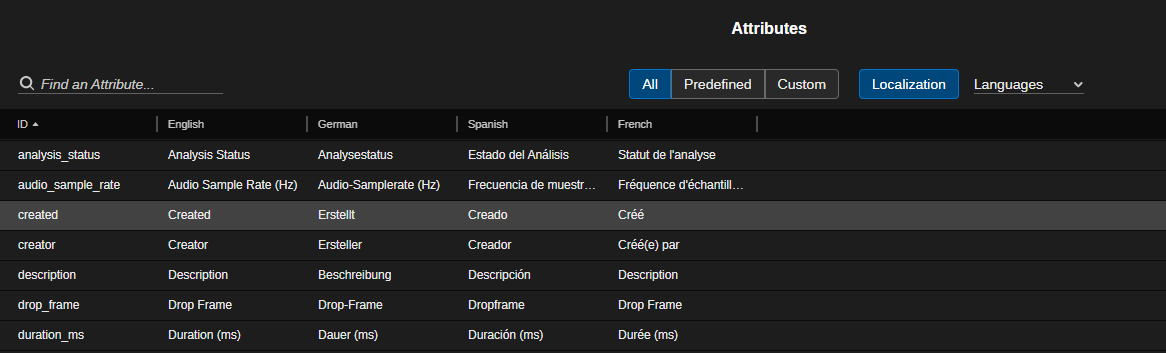
To open the Localization Table:
-
Do one of the following:
-
In the Namespace Editor app, select the namespace for which you want to view available attributes. The Attributes Table opens.
-
In the Namespace Editor app, select the Taxonomies tab.
-
-
Click the Localization button.
The Localization Table displays attributes or taxonomies and their localized values based on the languages available for the namespace.
Similar to the Attributes and Taxonomies tables, you can locate a specific attribute or taxonomy by using the search filter or by selecting the Predefined or Custom button.
n Predefined, system-defined attributes and taxonomies, including their localized values, cannot be edited.
You can also use the Language filter to specify which languages are displayed in the Localization Table. Select one or more languages to limit the display to the selected languages only. The displayed results are updated accordingly, allowing you to view and manage localized values more efficiently.
To add or edit localized values to custom attributes, taxonomies, or entries under a taxonomy:
-
Click Localization in the Attribute or Taxonomy Table.
-
Do one of the following:
-
Find the attribute or taxonomy by entering its unique ID in the search filter.
-
Click the Custom button, then manually locate the attribute or taxonomy by scrolling through the list.
-
-
Do one of the following:
-
Enter the localized value directly in the appropriate language column.
-
Click the attribute or taxonomy to open the Details window, and then enter the localized value in the Labels section.
-
For adding localized values on entries under a taxonomy, double click the taxonomy to load the entries under it, and then enter the localized values in the appropriate field in the Entry Details window.
-
-
Do one of the following:
-
Click Save to apply your changes.
-
Click Revert if you want to undo your changes and restore its previous value.
-
To save the localized values added to taxonomies or entries within a taxonomy, click outside the field to save your changes.
-